

|
|
  |
|
||||
|
|||||
 |
MAXScript – Animate an object from external data
Summary: This document explains how to use MAXScript in order to animate objects using positional data from an external file.
The tips, tricks, examples and suggestions outlined in Autodesk Product Support technical documents are suggested for use at your own risk. Document contents are subject to change without notice. Autodesk is not responsible or liable for any damage or events that occur as a result of following suggestions from any Autodesk Product Support technical document.
© 1998 Autodesk. Autodesk and the Autodesk logo are registered trademarks of Autodesk Inc. All other brand names, product names or trademarks belong to their respective holders.
Table of Contents
OverviewAnimation of objects from external sources of positional or rotational data can be useful with visualization projects in certain fields (for example, with forensics or medical imaging). ‘Controllers’ handle most animated movement in 3D Studio MAX by storing animation keys and interpolating between key values. Since almost all objects in 3D Studio MAX have accessible controllers, it is relatively simple to modify a controller using MAXScript.
In order to animate an object’s position procedurally, you read keyframe values into the object’s controller track from an external file. There are two built-in MAXScript functions to facilitate this process: addNewKey and readValue. This document explains how to use a script to read in sample positional data, then discusses each section of the script in detail.
Animate position from an external file
1. Go to the Utilities panel, push the ‘MAXScript’ button, then push the ‘New Script’ button from the MAXScript rollout.
2. Set up some sample positional data. To do this, copy and paste the following text into the new MAXScript window:
| -15.7436, | 9.4353, | -11.2804 |
| 96.011, | -150.876, | 138.0289 |
| -5.2103, | -230.7725, | 122.3503 |
| 29.9328, | -212.5843, | 9.2386 |
| 92.5178, | -120.9492, | -57.7814 |
| -0.5455, | 1.8896, | 11.4197 |
| -91.7734, | 124.0946, | 122.0455 |
| -28.3564, | 213.9283, | 164.8463 |
| 4.4424, | 231.2096, | 84.569 |
| -102.4511, | 155.1786, | -55.0066 |
| -15.7436, | 9.4353, | -11.2804 |
3. In the file menu of the new Script, save the script. Change the ‘save as type’ dropdown to ‘Data files (*.dat)’ and then ‘File name’ as infiniti.dat. Save the new .DAT file in the \SCRIPTS directory.
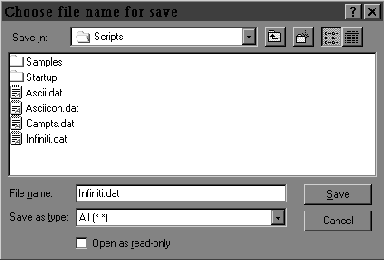
Data file saved to .DAT Format
Define and evaluate the function
1. In the File menu of the new script, choose New.
2. Copy and paste the following text into the new MAXScript window:
-- This Script will reset your scene, so save before running it.
resetMaxFile #noPrompt
s = sphere ()
spaz = s.pos.controller

-- Function Definition
fn AddKeysFromFile        ctrl    file    =
(
    local f = openFile file
    t=0
    while (not eof f) do
        (
            local x = addNewKey ctrl t
            local a = [readValue f,readValue f,readValue f]
            x.value = a
            t += 10
        )
    close f
)

-- EVALUATE FUNCTION
AddKeysFromFile    spaz "infiniti.dat"
3. From the File menu, choose Evaluate All.
4. In any of the viewports, zoom out and press the play button.
Tip: ‘Evaluate All’ will run the entire script. A shortcut to evaluate one line of text in a script is to place the cursor at the end of that line in the script and press <SHIFT> and <ENTER> simultaneously. To evaluate multiple lines, highlight the lines and press <SHIFT> and <ENTER> simultaneously.
The sphere will fly around on a modified figure-eight path. The XYZ position data from infiniti.dat has been read into the sphere’s position track in 10 keyframes.
Discussion of Script Contents
Each section of the script is explained in detail, below. For each section, a sample of the code is followed by a description.
The infiniti.dat data file contains lines of positional data such as:
-15.7436, 9.4353, -11.2804Data for visualizations (like forensic recreations) generally comes from an external source, so it should not be necessary to create an external data file as described in this exercise. A .DAT file can contain any number of columns and rows, separated by standard delimiters such as <space>, <tab>, and <comma>. This case has XYZ data, separated by commas in three columns, with 11 rows of data. This will be transformed into eleven XYZ keyframes in the position tack.
Script to use positional data
   -- This Script will reset your scene, so save before running it.


resetMaxFile #noPrompt
The ‘resetMaxFile #noPrompt’ line resets the current session without further prompting, in order to ensure a fresh start. This line is optional, and can be ‘commented’ so the program will ignore it.
‘Commenting’ is a method of leaving text in code that the program ignores. In MAXScript, the comment symbol is two dashes [ -- ] and whatever follows those two dashes is ignored by MAXScript as it evaluates that line of code. The comment symbol will only cause the program to ignore only a single line of code, so it is necessary to place it at the beginning of each line of comments. This is useful for commenting on lines of the code as you write it, and for disabling parts of a routine without erasing the code. You will see many comments in MAXScripts; they are the programmer’s notes to you. In this example you could enter [-- resetMaxFile #noPrompt] to "comment out" the reset command.
s = sphere ()
spaz = s.pos.controller
These lines create a scene object (a Sphere) and then assign a variable to the object’s position controller. The empty parentheses tell 3D Studio MAX to create a Sphere with default properties.
   -- Function Definition


fn AddKeysFromFile      ctrl       file          =
This is the beginning of the function definition. TheAddKeysFromFile function will take two arguments. The ctrl argument is the object’s controller track; the file argument is the data file from which position data will be read.
(

 local f = openFile file
A local variable is assigned to the data file. The contents of the file are now available for the function.
t=0Set the time to 0 before adding keys.
while (not eof f) doThis starts the loop statement. "While the end of the file has not been reached, do the following…"
  (

       local x = addNewKey ctrl t
A local variable holds the built-in addNewKey function, which adds a key to the controller argument at the specified time
local a = [readValue f,readValue f,readValue f]
A local variable reads the first three values from the data file.
x.value = aThe XYZ value of the new key is read from the a variable.
     t += 10

  )
These lines set the time forward at whatever increment the positional data requires. In this case, the increment is 10 frames.
   close f

)
After the end of the file has been reached, close the data file.
-- EVALUATE FUNCTION

AddKeysFromFile spaz "infiniti.dat"
Calls the function on the position controller of the sphere, from the infiniti.dat file created earlier.
| Was this article helpful?
(very helpful) 5 43 21 (not helpful) |
Home | Products | Tech Assist | Autodesk | Prof Net | Search | Sitemap | Purchase
©Copyright
1998 Autodesk, Inc. All rights reserved.
Reproduction or copying
of images is prohibited.
Autodesk
Privacy Policy
