-
v.0.6.0 -12/09/2004 1pm CST -
- BUG FIX AND BIG CHANGE: Fixed the typo in the global Layour array - "SpreadSeet" has been fixed to "SpreadSheet". Note that you will have to manually edit your own Layouts to the new correct name. Sorry for the trouble!
- Changed the installation folder to be a
sub-folder of the /Scripts directory.
This also means that all calls to Filters from inside of Layouts should use the new path "\Scripts\SpreadSheet\Filters\..." - BUG FIX: Fixed the Column Width setting code to respect the first column width (Object Name) from the Layout. In previous versions, the first column had always a fixed width.
- Added HELP item to the Menu linking to the SSE WebPage, Boboland and ScriptSpot.com
- BUG FIX: Fixed Dialog Style bug which was broken in Max 6 and 7
- While at this, added Minimize and Maximize buttons to the UI, so you can temporarily minimize or maximize to the whole monitor (esp. on dual-monitor systems)
- v.0.5.2 -04/24/2003 3pm CET -
- Added support for Get/Set Property Functions. Please see source code header for details.
- v.0.4.2 -05/05/2002 6pm CET -
- Better sorting of "--" entries (handled as lowest value now)
- Reload Layout menu implementation was missing, fixed.
- Fixed loading order so Layout will load first, then the last Filter will be applied overwriting the Layout's filter defaults.
- v.0.4.1 -05/05/2002 9am CET -
- 3ds max 4.2 compatibility fixes
- Fixed a crasher when showing selected with no filters available.
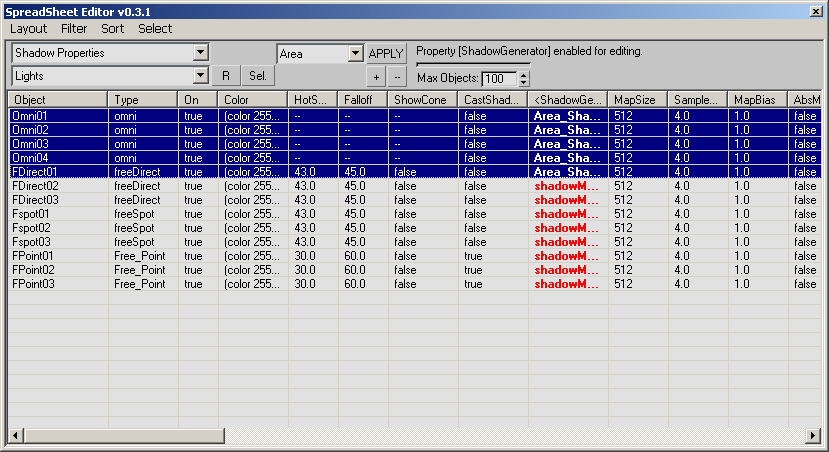
- Made the "New Layout" function shadowGenerator - aware.
- Column Highlight now persistent after Sorting and Filtering operations
- Layout property can now be a function - add "()" to the end of the 3rd element to evaluate as function instead of a property. See "Class" example in "General Object Props"
- Filters can now be associated with Layouts so that Light Lister can filter Lights etc.
- Added some new layouts and filters
- v.0.3.2 -05/03/2002 8pm CET - Fixed a crasher in sorting non-existing values, made sorting more persistent.
- v.0.3.1 -05/03/2002 15pm CET - Menus, ShadowGenerators support, Sorting, Selection Synchroniaztion, Column Highlighting
- v.0.2.2 -05/02/2002 7pm CET - Selection filter, Relative Values, Max.Objects control
- v.0.2.1 -05/02/2002 4am CET - Value Sliding, Dockable/Extended Viewport option, Position/Size Memory
- v.0.1.5 -05/02/2002 2am CET - First public version
- v.0.1.3 -05/01/2002 11pm CET - First working version
- v.0.1.1- 05/01/2002 2pm CET - Proof of concept
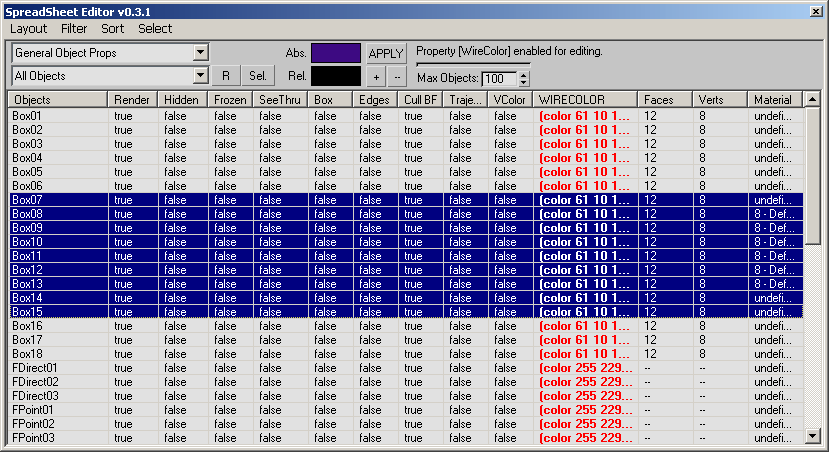
- The SSE can be freely rescaled to any desired size, even to a whole monitor.
- Every column can be freely resized.
- Columns can be reordered. (The default order is defined by the Layout, but is not intersession-sticky yet).
- SSE can display ANY number of properties of ANY number of objects.
- The properties displayed by SSE are freely customizable and can be ANY property accessible to MAXScript.
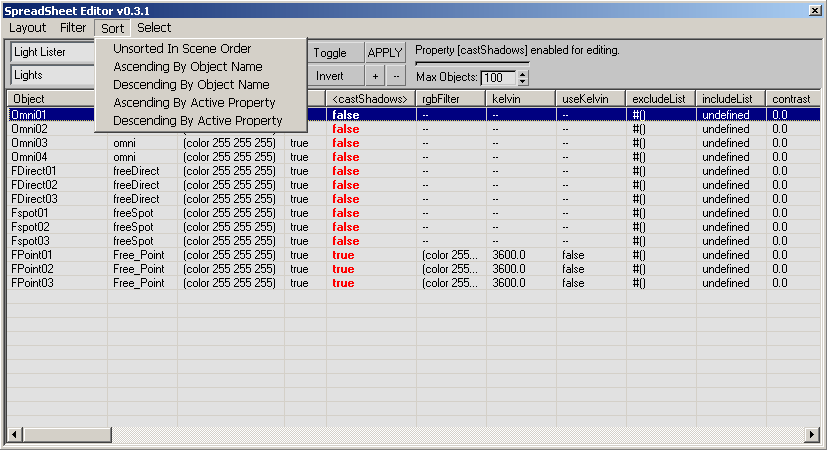
- ANY number of layouts can be defined using short ASCII files - SSE will provide a list of all defined layouts for selection:
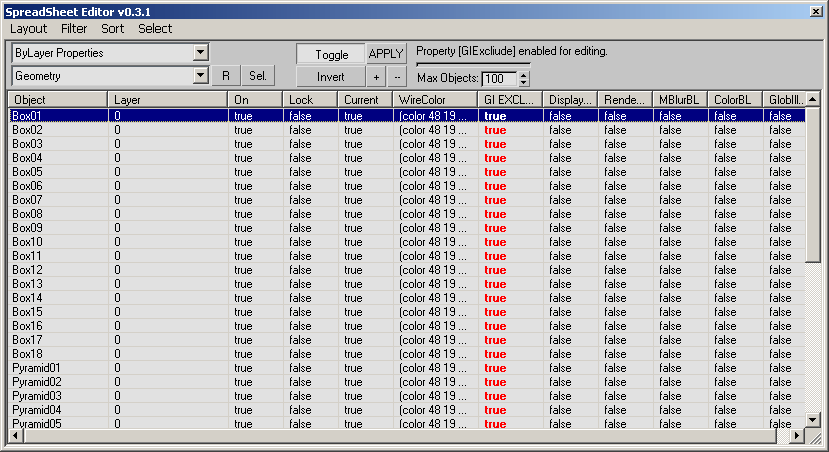
- Sample Layouts include "General Object Properties", "Bone Properties", "Light Lister" and "ByLayer Properties"
- Other possible Layouts include "Materials and Maps" etc.
- New Layouts can be created from any scene selection to match the properties of the selected objects.
- ANY number of filter functions can be defined using short ASCII files - SSE will provide means for creating, editing and applying the filters on the fly.
- Any number of objects can be selected at the same time using the usual windows controls:
- LMB click to select a single object
- LBM + drag a window to select multiple objects
- Ctrl+LMB click to select/deselect single objects
- SHIFT+LMB click to select a range from the first to the second clicked object
- To enable property changes, just click the Header (for example "Hidden") - it will change to UPPER CASE ("HIDE")
- To disable changes, click the Objects header. This will prevent you from changing properties by accident.
- Select any number of objects
- Click the property Header to enable changes - a matching UI control will appear on top of the list.
- Change the value of the UI control (color swatch/spinner/checkbox...) to update all selected object's property.
- Enable a property by clicking the repsecive header
- Double-click a single object - the value will appear in the respective UI control on top
- Select any number of objects in the list
- Press the "APPLY" button - the property will be changed to the acquired value.
- Boolean properties (true/false) can be changes instantly using
- RMB click to invert the current values
- Ctrl+RMB to set all values to False
- SHIFT+RMB to set all values to True
- Floating point properties can be changes instantly using
- RMB click and draw up/down to increase/decrease the existing values relatively to their original value
- Ctrl+RMB for a slow update (10 times slower)
- SHIFT+RMB for an accelerated update (10 times faster)
SELECTING OBJECTS IN THE SCENE:
- You can select the SSE selection in the scene by double-clicking while selecting any number of objects.
- There is a number of layouts shipping with SSE defining which properties to be displayed.
- Any number of new layouts can be defined by the user to create completely new SSE views.
- Layout files contain an array of arrays with the following information:
- Property Name
- Highlighted Property Name
- MAXScript Property to get
- Property Value Class
- Column Width
- Editable State - true means the property can be edited by SSE, false means Read-only (stuff like vertexCount, FaceCount etc.)
- You can add new properteis by editing the .layout file even wile running SSE. After saving the changes, reselect the layout from the list to see the changes.
- To create a new Layout,
- Select some objects in the scene whose properties you want to control from the new Layout
- Select Layout>New from the SSE menu bar
- In the Save dialog box, type in a Layout name
- Press Save to confirm or type in a name of your choice.
- A new maxscipt file describing all common properties to be displayed by the Layout will be created.
- The new Layout will become the current Layout.
- To edit a Layout, select it from the list and select Layout>Edit. Make your changes, save the file and reselect the Layout to see the changes.
- The Layout file is a MAXScript file which SSE will read to define certain variables. It can also be used to define user functions accessed by the Layout, or to call SSE functions like for example for Setting the current Filter etc.
- The main part of the Layout is a global variable called (the typo is kept for backwards compatibility) "SpreadSeet_Property_Editing".
- This variable contains an array of arrays describing the single columns to be shown.
-
Each column has the following elements:
- Column Name when unselected
- Column Name when selected
- Property to get/set
- Value Type (Float, BooleanClass, Color etc.)
- Default Column Width in pixels
- Editable State - when true, the property will be editable. When false, the property will only be shown but no controls for changing will be available. (For example for read-only properties)
- Generally, the third element of the array
contains a property name. These are the names used in MAXScript to access
object properties with .property. There are two special cases though:
- You can call functions to get a property by adding "()" to the name. For example, to show the class of an object in the SSE, you could use "classof()" instead of property name. This will call the MAXScript own classof function passing the object to it for evaluation. The same can be done with user-defined functions - either global ones or defined in the beginning of the Layout file. You cannot SET properties this way though.
- NEW in 0.5.2: You can call own user functions to get AND SET properties by adding "{}" to the end of the name. These functions are best placed in the beginning of the Layout file. When getting a value, SSE will look for "{}" and if it finds them, it will remove them and call the remaining function name by passing the object as parameter. When setting a value, SSE will first remove the "{}", then replace the first 3 letters of the name with "Set" and call the resulting function by passing it the name and the value to set as parameters. This means that the two user functions for getting and setting values should have the same name except for the first 3 letters. The get functions should start with "get", the set function MUST start with "set". See the header of the SSE source code for more notes and an example.
- The filters are found in the second drop-down list. They are completely customizable.
- To apply a filter, just select it from the list.
- In case the scene content has changed, you can press the [R] button to reapply the filter / update the SSE display.
To create a new Filter, Select some objects you want to use in a Filter. If you don't select anything, a default "All Objects" type Filter will be created. Select Filter>New from the SSE menu bar In the Save dialog box, type in a Filter name - SSE will propose a name based on the classes of selected objects. Press Save to confirm or type in a name of your choice. A new maxscipt file with a filter function for the classes of the selected objects will be created. The new Filter will become the current Filter. To edit a Filter, select it from the list and select Filter>Edit. Make your changes, save the file and press [R] to re-apply the changes!
Layout editor GUI - select any number of objects and define Layouts containing any properties from the selection. Layout storing - store the changes to a Layout after adjusting column width and order
- Download SpreadSheetEditor Beta 0.6.0
- Save it in the \Scripts folder of your Max installation.
- Unzip the file preserving sub-directories. ("Extract Here...") This should creaye a folder SpreadSheet with some sub-folders.
- The resulting paths should be D:\3dsmax\Scripts\SpreadSheet, D:\3dsmax\Scripts\SpreadSheet\Layouts and D:\3dsmax\Scripts\SpreadSheet\Filters where D: is your HDD and 3dsmax is your installation directory.
- The sub-directories should contain a couple of test Layouts and Filters, but the utility can run without them, too.
- Run the script file D:\3dsmax\Scripts\SpreadSheet\SpreadSheetEditor.ms
- Customize a toolbar/quad/menu/shortcut, locate SpreadSheetEditor under "Bobo_s Tools" category and place it where you want.
- Launch SpreadSheetEditor.
- The code is under development, please remember it is a Beta and might crash often.
- Thanks go to
- Anders Stensgaard for the ideas (and XSI for the inspiration ;o)
- Ravi Karra for convincing me ActiveX is a Good Thing.
- Alexander E. Bicalho for his Region Net Render which gave me initial speed with ListView.