|
Gridify
MaxScript Release 0.45 Beta Source (02/01/2001)
MaxScript Release 0.4 Beta Source (02/25/2000)
MaxScript Release 0.3 Beta Source (12/10/1998)
Copyright (c) 1998-2001 by Borislav Petrov, Bobo's Rendert**ls.
|
SHORT DESCRIPTION
Gridify is a polygon modeling utility that lets you
split whole meshes or face selections into smaller segments.
It is very useful for increasing mesh detail when
working with low-poly models and MeshSmooth.
HOW DOES IT WORK?
Gridify uses Slice planes to cut the mesh
into up to 20 segments in each direction.
After each slicing, it requires the mesh
to be collapsed so the next slicing can take place.
FEATURES
Beta 0.45 for MAX 4.x+ (02/01/01)
-
Added Split To Elements checkbox.
Beta 0.4 for MAX 3.1 (2/25/00)
-
The MAX 3.x version is implemented as MacroScript.
Evaluate the source, customize a toolbar and drag the button from the Bobo_s
Tools category.
-
Version 0.4 does not require separate controls
for Mesh Selection. It operates from a floater and requires the Modify
Tab in the Command Panel to be active. This means that the user can set
a face selection anytime WHILE working with Gridify. If there is an active
Face Selection in Command Panel, it will be used. I can be in an Edit(able)
Mesh or MeshSelect...
-
Using high slice values (over 10) can
be slower than in 2.5 because of the slower Command Panel updates. All
other controls work as before.
Beta 0.3 for MAX 2.5 (02/01/01)

-
Press the [Pick Object] button to select
the Mesh to be gridified. After selecting the object, its name appears
on the button. The Object should be convertible to mesh. It will be NOT
converted to EditableMesh until you specify so.
-
The [Set Face Selection] button lets
you quickly add an MeshSelect modifier to the selected object and switches
to Modifier Tab so you can select faces to be used by the utility. You
can select faces manually if you wish. The Utility will check for existing
modifiers on the stack and will ask you to collapse the stack first before
adding a new MeshSelect Modifier. If you answer with no, no changes will
be made.
-
The [Use Face Selection] checkbutton
is unchecked by default. Check it (turns red) to use any available face
selection in the Object. When the button is unchecked, the whole mesh is
sliced. This very powerful feature lets you increase detail on face level
- select a single face or quad and split it up to 20x20 times to perform
additional modeling operations without affecting the rest of the mesh.
-
The 3 Groups let you control the number
of slicing planes along the X, Y and Z axis separately. All 3 have identical
controls:
-
The On checkbox is deactivated by default.
If you check it, the currently set number of slicing planes are generated.
If you uncheck it, the slicing planes are deleted again. If the Use Face
Selection checkbutton is active, the planes will affect the selected faces
only.
-
The # value field lets you set the
number of segments to be generated - 2 creates one slicing plane, 20 generates
19 planes. You can change the number anytime INTERACTIVELY to adjust the
number of planes. You should work in either Wireframe or Shaded mode with
Edged Faces to see the result in the viewports. When the value comes over
10, interactivity might be reduced on slower machines.
-
The next value is used to set the OFFSET of
the slicing planes. The offset range is in percent of the width of a single
segment. (-99 to 99 %) (see animation below)

-
The MIN and MAX checkbuttons and the numeric
value between them are used to set a BIAS of the planes - this is an experimental
feature in Beta 0.3 and might not make much sense. It slides the slicing
planes increasingly closer to each-other and allows for variable segment
size. (see animation below). The checkbuttons can be checked
individually or be both unchecked (default). They cannot be checked together
at the same time.


EXAMPLE
The following simple example shows the usage
of Gridify for modeling
with low-polygon counts.
Starting with a simple box without any
segments...

...We can add detail only where needed...
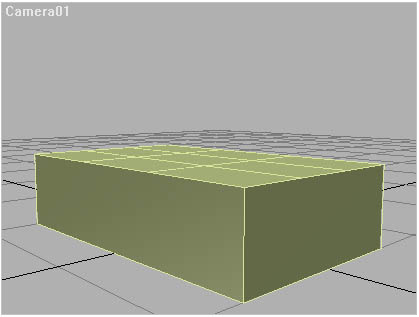
...And combine the slicing with the Extrude
function of EditableMesh,
then add detail to one side of the extrusion...

...And extrude once again to get the final
shape...
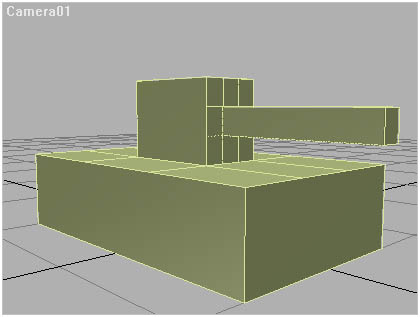
...which is ready for applying MeshSmooth...

This way, we retained low detail all over
the mesh, while adding
higher detail only to the right places.
DOWNLOAD Gridify
Version 0.3 for MAX 2.5
Version 0.4 for MAX 3.x
Version 0.45 for MAX 4.x+