 |
The Saviour
MaxScript Release 0.31 Beta FOR MAX 3 (01/01/2000)
Copyright (c) 1999-2000 by Borislav Petrov, Bobo's Rendert**ls. |
SHORT DESCRIPTION
The Saviour (code name) is a custom
MagpiePro Facial Motion Capturing Data Importer.
It is being developed exclusively for HyperImage
LLC
INSTALLATION
-
Copy the .MS file into the \Scripts
directory
-
Copy the BMP files into the \UI
directory
-
Start 3D Studio MAX 3.x
-
From the MAXScript drop-down menu,
select "RUN Script".
-
Find the file called "Saviour03.ms"
and run it - nothing should happen.
-
Right-click a toolbar and select
Customize...
-
Find the entry "TheSaviour" in
the Category "HyperImage".
-
Drag the
icon to the toolbar, close dialog.
-
Select an object containing a
Morpher modifier.
-
Press the icon - a new floating
rollout should appear.
FEATURES
Version 0.31 BETA (01/01/2000)
New features in 0.31 will
be displayed in green.
-
To start the utility, select an object with
a Morpher modifier and press the utility button on the toolbar.
-
If the selection is not valid (none or too
many objects selected, or no Morpher modifier present), you will be prompted.
-
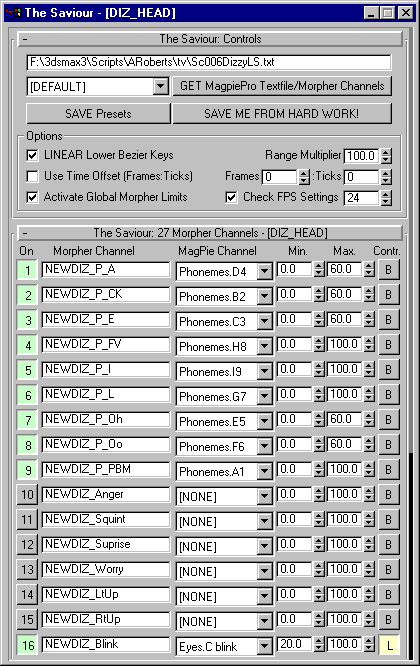
The utility is implemented
as floating window containing two or three rollouts. When started, only
the Controls rollout and the About rollout will appear. The Controls rollout
will let you pick a MagpiePro Textfile.
-
NOTE that the object that was selected when
the utility started will be remembered and must not necessarily remain
selected for the whole session. To pick a new object, simply select it
and press the Saviour button again. The name of the object will appear
in the title bar of the floater.
LOADING A
MAGPIE TEXTFILE
-
Press the [GET MagpiePro Textfile/Morpher
Channels] button to load a Magpie Textfile. An Open File dialog will
open to let you select a file. NOTE that there is no specific file extension
for this type of files, so the default mode will be "All Files (*.*). You
can also switch to Text File (*.txt) or Data (*.dat). In case the file
does not contain valid MagpiePro data values, an error message will appear.
-
The utility will remember the path and file
name of the last valid Magpie Textfile and will open the Open File browser
at the same location next time you launch the application. The info is
saved to a file called Saviour.ini in the \Scripts directory of 3DS MAX.
-
If the selected Magpie Textfile is a valid
one, a new rollout will open listing all Morpher channels and the Phoneme
channels from the Magpie Textfile, plus some additional track controls.
-
The Phoneme channels will be activated if
the Morpher channels contain specific characters. These are currently hard-coded
into the application to fit the workflow of HyperImage.
WORKING WITH
PRESETS
-
The default settings of channels will be immediately
saved to a temp. Presets file which will appear in the Presets drop-down
list as [DEFAULT]. If you change settings later and decide to restore the
original defaults suggested by the utility, just select this entry from
the Drop-down list.
-
If there is a Presets .SVR file in the \Scripts\Saviour\
directory with the same name as the Morphed object selected by The Saviour,
the presets from that file will be loaded automatically. This lets you
set up specific Presets for certain objects and have them loaded automatically
each time you want to use The Saviour with them.
-
All Presets files containing data from the
currently selected Morphed object will be marked with a * (star) sign in
front of their name in the drop.down list. This way you can quickly see
which presets are valid for the current object. NOTE that the number of
active Morpher channels will NOT be compared in this case.
-
To save a new Presets file, press the "Save
Presets" button - a new Save File dialog will appear. It will display the
default and compulsory \Scripts\Saviour\ directory and will suggest a presets
name with the .SVR extesnion and the name of the Morphed Object as the
base name. You can save to ANY name you want, but only SVR files inside
this special directory will be recognized by the utility.
-
After saving a Preset, its name will appear
in the Presets Drop-down list.
-
The Presets file will store the name of the
current Morphed object and will prompt you if you try to Load the presets
to another object. The prompt window will display the names of both objects
and the number of active Morpher channels. If you load Presets with less
active Morpher channels than the target object, all of them will be loaded.
If you try to load a Presets file with more channels than available in
the target object, all target channels will be set up and the exceeding
channels will be skipped - an error message will be displayed in such a
case.
-
The Presets will save absolute states for
all UI elements except for the Drop-Down list. Although both absolute (index)
and relative (Selected String) data is saved, only the relative data will
be loaded. This means that a channel will be loaded from presets only if
its name matches a channel name loaded from the Magpie Texfile. This is
to make sure only the correct channel will be loaded in case the index
order of channels differs between Magpie Pro files.
IMPORTING
MAGPIE MOTION CAPTURE DATA
-
To assign the MagpiePro data to the active
(On/Off toggle green) channels, press the [SAVE ME FROM HARD WORK!]
button.
-
To specify own Phoneme channels for specific
Morpher channels, select from the "Magpie Channel" drop-down lists. If
the selection is different from [NONE], the on/off toggle to the left will
be activated (green) automatically.
-
If you select [NONE] from the drop-down list,
the On/Off toggle will be disabled automatically.
-
To deactivate a channel manually without setting
the Phoneme channel to [NONE], uncheck the On/Off toggle.
-
The toggle to the right controls the controller
type. When unchecked it reads "B" for "Bezier". When checked it reads "L"
for "Linear" and turns yellow.
-
If the On/Off toggle is active and the Phoneme
channel is set to [NONE], only a new controller will be assigned to the
track without importing any keys, repsecting the controller type toggle.
Any existing keys will be PRESERVED.
-
If the On/Off toggle is active and the Phoneme
channel is different from [NONE], any existing keys will be removed first,
then new keys will be created according to the imported Magpie Textfile.
-
New in 0.31: If
the "Saviour Controls>Options>Use Time Offset (Frames:Ticks)" checkbox
is activated, the values entered in the two value fields "Frames" and "Ticks"
will be used to offset the key times of ALL imported keys. These values
are intersession-sticky and are saved automatically to a configuration
file "saviour.cfg" in the \Scripts directory each time they have been changed.
The "Frames" value can range from -1000 to 1000. The "Ticks" value can
range from -4800 to 4800 (one second). If both values are set to 0 or the
checkbox is deactivated, all keys will be imported according to the Magpie
Pro key times.
-
If the "Saviour Controls>Options>LINEAR
Lower Bezier Keys" checkbox is activated, the imported keys that are
at Zero or at the min.Limit will be set to Linear type which will make
the bezier controller "semi-linear". This will avoid values bellow the
min. Limit. or Zero. This checkbox is intersession-sticky and is saved
automatically to a configuration file "saviour.cfg" in the \Scripts directory
each time it has been changed.
-
If the checkbox "Saviour Controls>Options>Check
FPS Settings" is active, the value entered to the right of the checkbox
will be compared to the current scene Frame Rate. If there is a difference,
you will be prompted.
-
The Multiplier value under "Saviour Controls>Options>Range
Multiplier" is used to multiply the imported Magpie value which is
usually between 0 and 1. The default multiplier is 100.0. For example if
5 key values from Magpie are 0.0, 0.2, 0.5, 0.9, 1.0, you will get 0.0,
20, 50, 90, 100 when using a 100.0 multiplier.
-
The Min. and Max. limits
in the Morpher Channels rollout are used to CLAMP the resulting value from
above multiplication. In the above example, if min is set to 20 and max
to 60, you will get 20, 20, 50, 60, 60
-
Vowels and CK will be set by default to max.
value of 60.
-
The Blink channel (if existing) will have
a default min. value of 20.
-
The Blink channel will be set to Linear controller
by defaut.
-
The "Eyes.C Blink" channel will be assigned
to the Blink track by default if both are present.
-
If the "Activate Global Morpher Limits" checkbox
is active, the Global Limits checkbox of the Morpher modifier will be checked,
too. This will limit all morpher channels to the default 0-100 range and
make it easier to use the MorpSliders utility later on the same object.