CreepingDeath

MaxScript Release 0.42 Beta FOR MAX 3 (11/30/1999)

Copyright (c) 1999 by Borislav Petrov, Bobo's Rendert**ls. 

SHORT DESCRIPTION

CreepingDeath (code name) is a custom Multiped Walk Cycle Synchronization Tool.
It is being developed exclusively for HyperImage LLC


HOW DOES IT WORK

CreepingDeath (CrD) lets the user Animating the whole hierarchy relatively to the world will make the Multiped creature change walking speed to fit the requirements of the new animation. It will speed up, stop, go backwards or crawl slowly depending on a single animation track providing realtime feedback during animation.
Both functions let the animator create a different walk cycle for each leg and get these animations synchronized automatically for a convincing and sliding-free walking animation.

Example AVI : Linear Acceleration - Linear Motion (Indeo(R) Video 5.04)
Example AVI : Bezier Acceleration - Linear Motion (Indeo(R) Video 5.04)
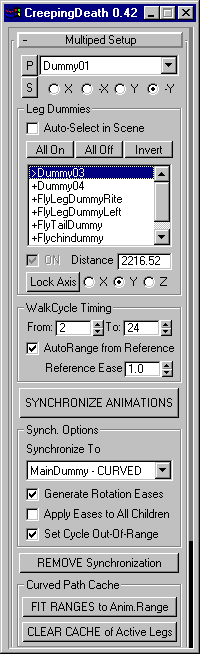


FEATURES

Version 0.42 BETA (11/30/99)
NOTE: Currently, the utility supports only one Ease Curve per Track and will not keep Ease Curves added manually by the user. In future CrD versions the utility will recognize its own Ease Curves and will not affect (remove) any User-Defined Ease Curves.

USAGE EXAMPLE
 
  1. Install and Register CrD
  2. Load the sample MAX scene "Crd_Sample01.max"
  3. Press the "CreepingDeath" button
  4. Go to Display Tab, Hide by Category, Geometry OFF, Helpers ON.
  5. Press the [ P ] button and select the biggest Dummy called "WalkMainDummy" - it should appear in the drop-down list, and 5 Leg Dummies should apper in the Legs List.
  6. Select every single Leg Dummy and note the different "Distance" values for Rear and Front Legs! The numbers show that the rear legs cover almost 4 time the walking distance of the front legs.
  7. Check the "Auto-Select in Scene" checkbox and note that the current Leg Dummy is selected in the scene, too.
  8. Select the "DummyFlyRoot" in the list (3rd entry) and uncheck the "ON" checkbox. This will disable synchronization for the Dummy controlling the up/down motion of the body. Also note that the active axis for the "DummyFlyRoot" is Z while all Legs have axis Y selected by default. These settings are automatic and denote the longest motion along one axis.
  9. Press the "Lock Axis" button - it turns pink. Set the axis to X. Since this dummy is disabled, these settings will not affect the scene.
  10. Double-click the "DummyFlyRoot" - it will become the Reference Dummy ">". Note that the To: value under "Walk Cycle Timing" has changed to 32 since the checkbox "AutoRange from Reference" is checked. Uncheck this checkbox and double-click the first Dummy "DumLftRearLink02" to make it the Reference again - note that the value 32 remains. Activate the "AutoRange..." checkbox again and double-click "DumLftRearLink02" again - WalkCycle Range will be set back to 0-30.
  11. Move the floater to a new position on the screen, uncheck the "Generate Rotation Eases".
  12. Close the utility by clicking the [X] button of the floater. Open it again by pressing the "CreepingDeath" button. Note that it will appear at the same position you left it when closing and "Generate Rotation Eases" is unchecked.  Also, all Leg Dummies have stored their activation/reference settings. Select "DummyFlyRoot" and note that the Lock Axis button is still selected and the active axis is still X. Depress the "Lock Axis" button and note it returns automatically to Z axis. Press again - it goes to X. Depress - back to Z.
  13. Check "Generate Rotation Eases" again.
  14. Move the Time Slider around - note that the FireFly legs move in-place, each with different speed.
  15. Set the "Synchronize to Dummy" mode to "Reference - IN-PLACE".
  16. Press [SYNCHRONIZE ANIMATIONS] - a symbol "~1" should appear after the 4 Leg Dummies. "DummyFlyRoot" was disabled and will not be affected.
  17. Move the Time Slider or press PLAY - note that the front legs move much faster than they used to in order to cover the same distance as the rear ones.
  18. Double-Click the Front Left Dummy in the list to make it the Reference.
  19. Press [SYNCHRONIZE ANIMATIONS] - the old Ease Cuvers will be removed automatically and new ones will be created.
  20. Move the Time Slider or press PLAY - note that the front legs move as slow as they used to, while the rear legs move much slower to cover the same distance.
  21. Change the "Synchronize to Dummy" mode to LINEAR.
  22. Press [REMOVE Synchronization] - note that the "~1" symbols disappear from all Legs in the list. This step is not really necessary since CrD will remove any existing EaseCurves automatically before applying new ones.
  23. Press [SYNCHRONIZE ANIMATIONS] again - the "~1" symbols should appear after the 4 Leg Dummies again.
  24. Move the Time Slider around again - note that the Legs will stand still while the body controlled by "DummyFlyRoot" will still move up/down.
  25. Select the "WalkMainDummy" in the scene, go to frame 40, Activate ANIMATE button and using the MAX Move tool / Transform Gizmo move the Dummy along the Negative Y axis. Note that the legs will move accordingly to stay on the ground WHILE you move the Dummy along -Y. A position key will be created at frame 40.
  26. Go to frame 100 and move the bug back or copy the key from frame 0 to frame 100. DON'T MOVE IT BACK BEYOND THE ORIGINAL POSITION AT FRAME 0!
  27. Deactivate the ANIMATE button.
  28. Go to Display tab, hide Helpers and show Geometry.
  29. Press the PLAY button and note the motion of the legs relatively to the checkered ground.