
In case of an irregular path and an irregular cross-section,
you should create a second, linear path, loft your cross-section
along an Instance of this path, make sure you have set a very high
number of Shape Steps under "Skin Parameters", then Bind the Loft to
a PathDeform
(in MAX2 add PathDeform WSM), Press "move to Path" and make sure the
right axis is selected.
Now, add an EditSpline modifier to the short straight line, select
the second vertex, add an XForm Modifier, go to the last
frame, press Animate and move the XForm Gizmo to make the line longer.
The Loft will grow, too, and will also follow the Path.
(In MAX2, you can animate the second vertex directly in the Line Sub-Object
level)
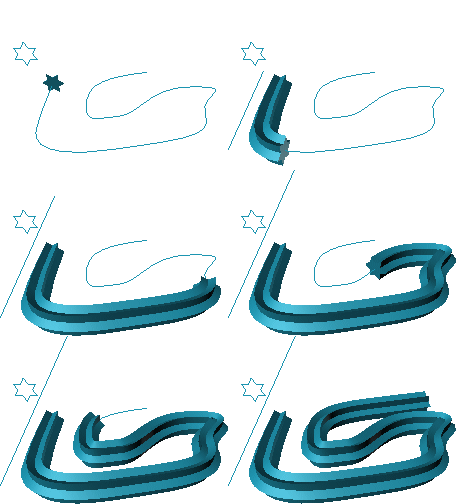
In the case of a regular cross-section and irregular path,
you could use PathDeform and a Cylinder instead:
Create a Cylinder, set enough height segs,
Bind to PathDeform (in MAX2 add PathDeform WSM), Press "Move to Path",
go to the last frame and animate the Height value and the Height Segments
value.
The cylinder will grow while following the path.
In case of a regular path like a circle, you can take an Arc shape and
loft
a cross-section on it. If you animate the Arc Degrees, the loft will
grow to
build a donut.
In these cases, the Loft itself grows and follows the path.
This means that any texture mapping coordinates created by the Loft
itself will be stretched over time, too.
In case you need fixed Mapping Coordinates, please use the Animated-Boolean-Following-A-Path
method
used in the Bomb Fuse Tutorial instead.