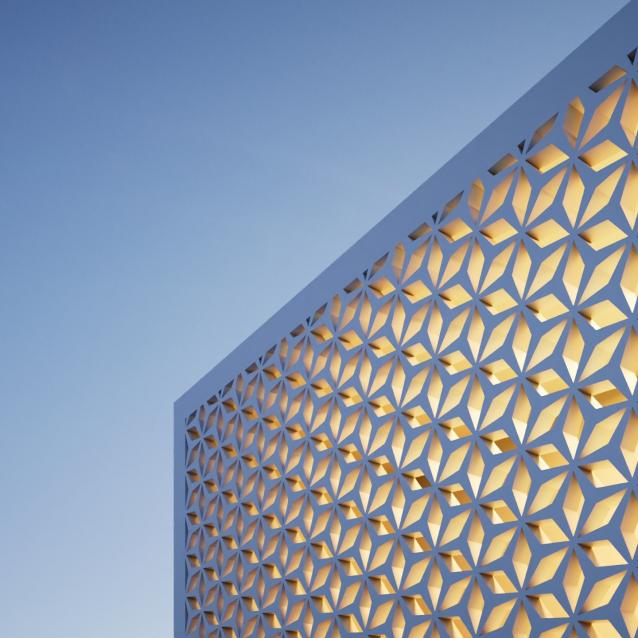
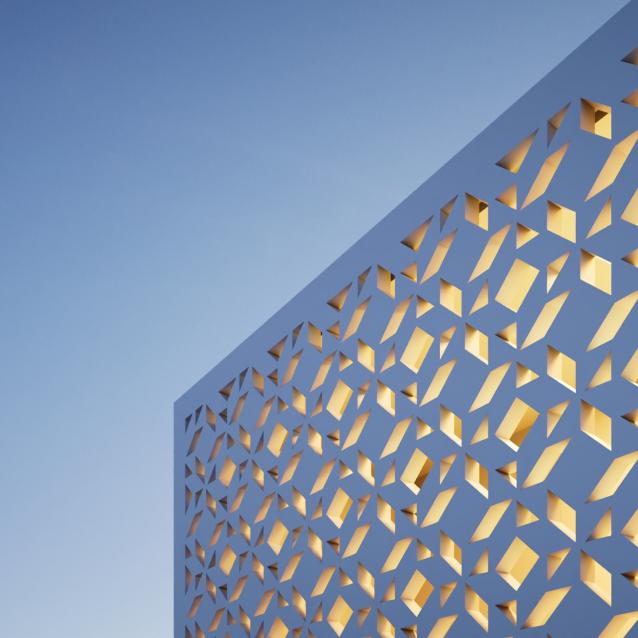
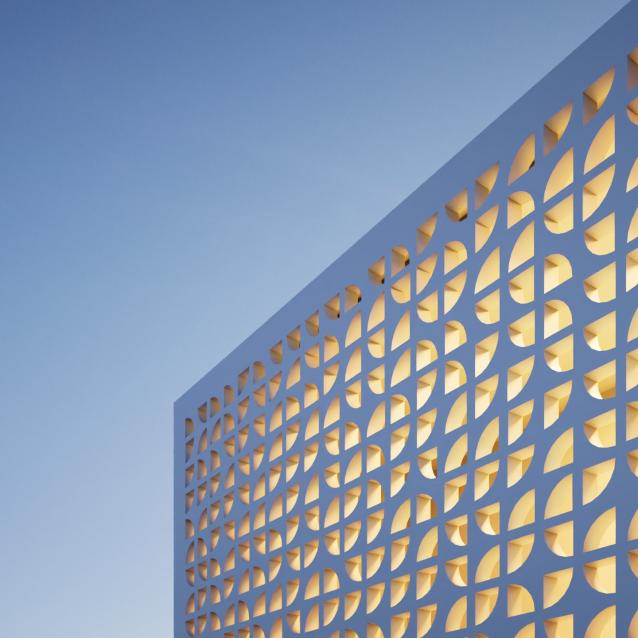
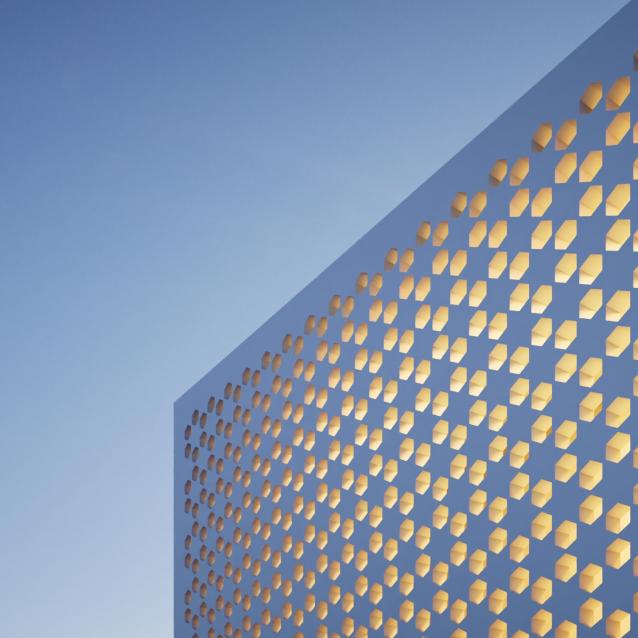
Pattern Engine is a scripted tool for 3ds Max that can generate and edit a variety of 3D geometry types—such as parametric patterns, 3D tiles, partitions, shelves, wall art, upholstery, and more—much faster and more easily than other approaches.
Core Features
User-Friendly Interface: An easy-to-use, well-organized interface.
Flexible Pattern Adaptation: Pattern objects can be generated and adapted to any 2D flat, closed shape.
Multiple Array Modes: Choose from Grid, Radial, or Random array modes.
Extensive Shape Library: Over 40 primitive shapes to use as pattern items.
Three Distribution Modes: Distribute items by Weight, Random, or Expression.
X and Y Expressions: Control the percentage of each item along the X and Y axes.
Per-Item Parameters: Adjust depth, angle, scale, slope, visibility, and more to fine-tune your designs.
Concave Mode: Generate hollow (concave) items and mix them with regular (convex) items.
Outline Mode: Create outlined or framed items for a unique look.
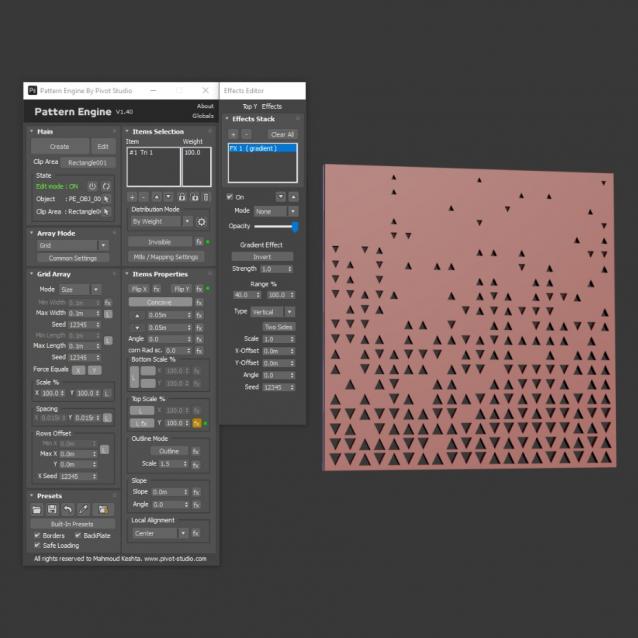
Effects: One of the tool’s most powerful features. Map any eligible value across the pattern with four effect types: Gradient, Random, Expression, and Shape. You can also blend effects using various blending modes for more control.
Bumpy Convex: Apply a “pillow” effect to convex items—useful for generating upholstery forms.
Array Borders: Offset the pattern from multiple sides with the option to display the border. Useful for framing patterns within a specific area.
Local Alignment: Different options for per-item alignment within local space when an item’s scale is under 100%.
Material ID Modes: Four modes are available—Fixed, Random, By Item, and Expression.
Built-In Presets: Over 200 ready-to-use presets in different categories are included.
Immediate Saving: Any changes to a pattern object are saved immediately, allowing you to revisit and edit them later.
Preset Management: Save and load presets, or pick a preset from another object.
New In Version 1.4
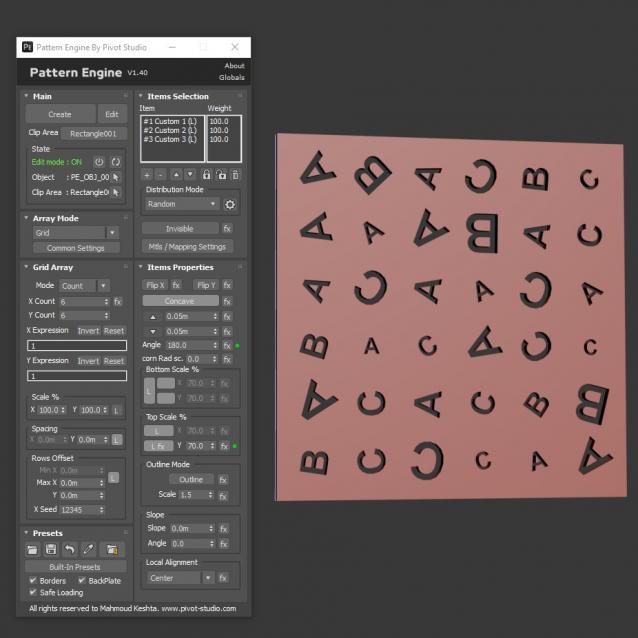
Custom Shapes: You can now use any closed, flat custom shape as a pattern item—unlocking endless possibilities for creating unique designs.
Characters from Text: Instantly extract all characters from any text object and embed them as custom shapes, allowing you to control each character individually.
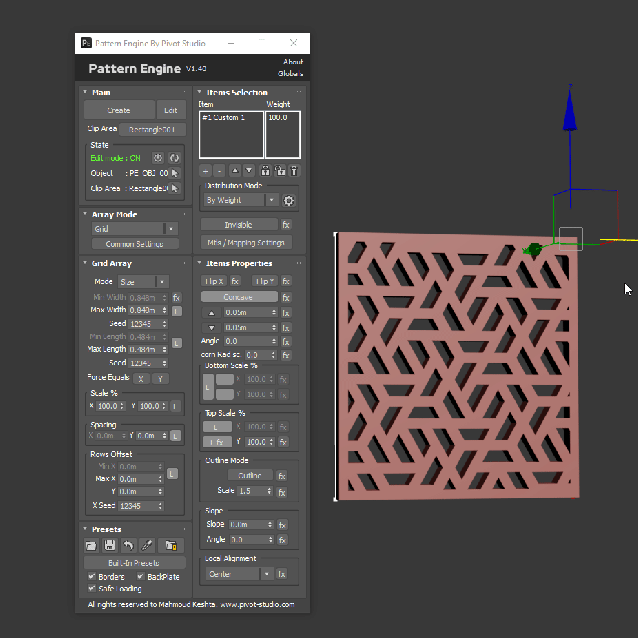
Pick from Another Pattern: Easily create compound patterns by picking any previously created pattern and embedding it as a custom shape into your current design.
Rows Y Offset: Offsets rows in the negative Y direction. This is especially useful for creating hexagonal grids, staggered layouts, and similar patterns.
Lock X or Y Dimensions: A new toggle control lets you quickly lock or unlock item dimensions in the X or Y direction. Ideal for generating patterns with precise dimensions, such as tiles or flooring layouts.
Additional Info
Requirements
Operating System: Windows 10 or later. It may work on Windows 7, but compatibility is not fully tested.
3ds Max Compatibility: Compatible with Autodesk 3ds Max versions 2018 through 2026.
Internet Connection: Required for license activation and verification.
User Account: Purchase and access to all 1.x updates require registering an account on our website.
Installation
Drag and drop the downloaded .mzp file into the 3ds Max viewport, then follow the on-screen instructions.
It is recommended to perform the installation while signed in to Windows as an administrator.
Make sure your system has all the latest Windows updates installed for optimal performance.
Activation
Activate the license using your registered email address and license key.
General Notes
It is recommended to work with centimeters (CM) as the system unit.
Keep system units constant, especially when saving and loading presets.
Applying modifiers to pattern objects is not recommended, especially while editing them in the script.
Restart the script after changing system units.
The pattern object is linked to the clip area as a child. When you need to move, rotate, or scale the generated pattern, it is best to do so by moving, rotating, or scaling the clip area—especially if the clip area is not embedded or has been deleted.
For best results, set Min Border to a value greater than zero.
When using a large number of items, generation may slow down depending on the complexity of the pattern and your computer’s specifications. It is advisable to gradually increase the item count or pattern density.
Limitations and Known Issues
General Stability: While Pattern Engine is generally stable and well-tested, it’s highly recommended to save or back up your work before using it, as crashes can occur in rare cases.
Undo Feature: Undo is turned off for this script, as using it may cause crashes.
Disappearing Objects: In some instances, generated objects may fully or partially disappear due to internal Boolean operations. To fix this, try making smaller adjustments to one or more of the following: Min Borders, Conv/Conc. Bool Thresh, X/Y Spacing, or Resolution.
Outline Mode: The frame width may not remain constant along the X and Y axes, especially when using a wide ratio for the clip area.
Bumpy Convex Restrictions: Only the Fixed Material ID mode is available when using Bumpy Convex.
Copying Pattern Objects: In rare cases, copying pattern objects may cause the saved state to be lost, particularly when Bumpy Convex is enabled or when using a large number of items.