Tagged 'Slate Material Editor'

Project Manager

597 votes
3rd version of Project Manager gains a lot of new features to manage 3D Assets. 
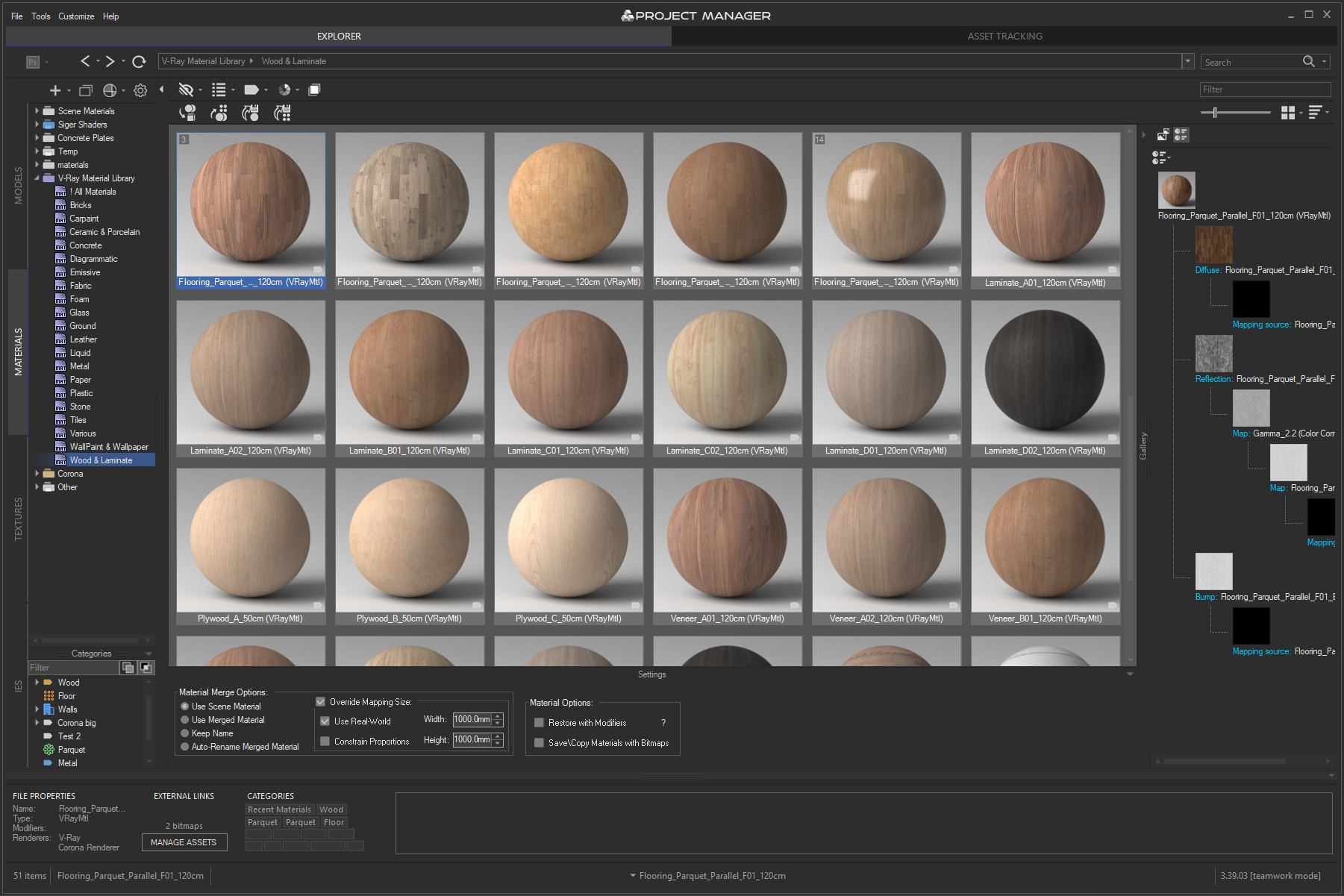
What is most unique to the new features – is the ability to assign custom previews to materials, associate files with materials, and create a gallery of files associated with any type of assets including materials. 
You can also write a description for materials and, of course, assign categories to materials.

Project Manager version 3.41.00

 Online Licenses – new activation system, one key for all computers, easy dashboard management.

 Import from Archives – use assets directly from .zip/.rar/.7z without unpacking.

 Custom Folder Colors & Color Labels – personalize your library with your own palettes.

 Category Filtering – filter assets by one or multiple categories in the current view.

 PBR Materials – added support for translucency maps and templates.

 Batch Import – merge multiple selected models into the scene at once.

 Other Improvements & Fixes – Redshift renderer support, new Extract command, 12 new folder icon sets, bug fixes and optimizations.


Project Manager version 3.40.00

What's new:
Instant interactive search across the entire database
Advanced filters with include/exclude options for filenames, descriptions, and categories
✔ Filter by complete folder path for precise asset selection
Color Labels: assign and filter assets by color for quick organization
✔ Isolate Selection filter for focused browsing
Significantly improved asset display speed for large file sets
✔ Smoother navigation and thumbnail caching — no more interface freezes
✔ Hide folders by relative path for fine-tuned library control
✔ Redesigned, collapsible bottom panel for more workspace
Batch Rename Tool: now with diacritic replacement, Cyrillic transliteration, and flexible numbering
✔ Custom exclude expressions for merging in 3ds Max
✔ High-DPI support, improved stability, and numerous bug fixes
More about new features ->  Project Manager version 3.40.00


Update History for all versions.

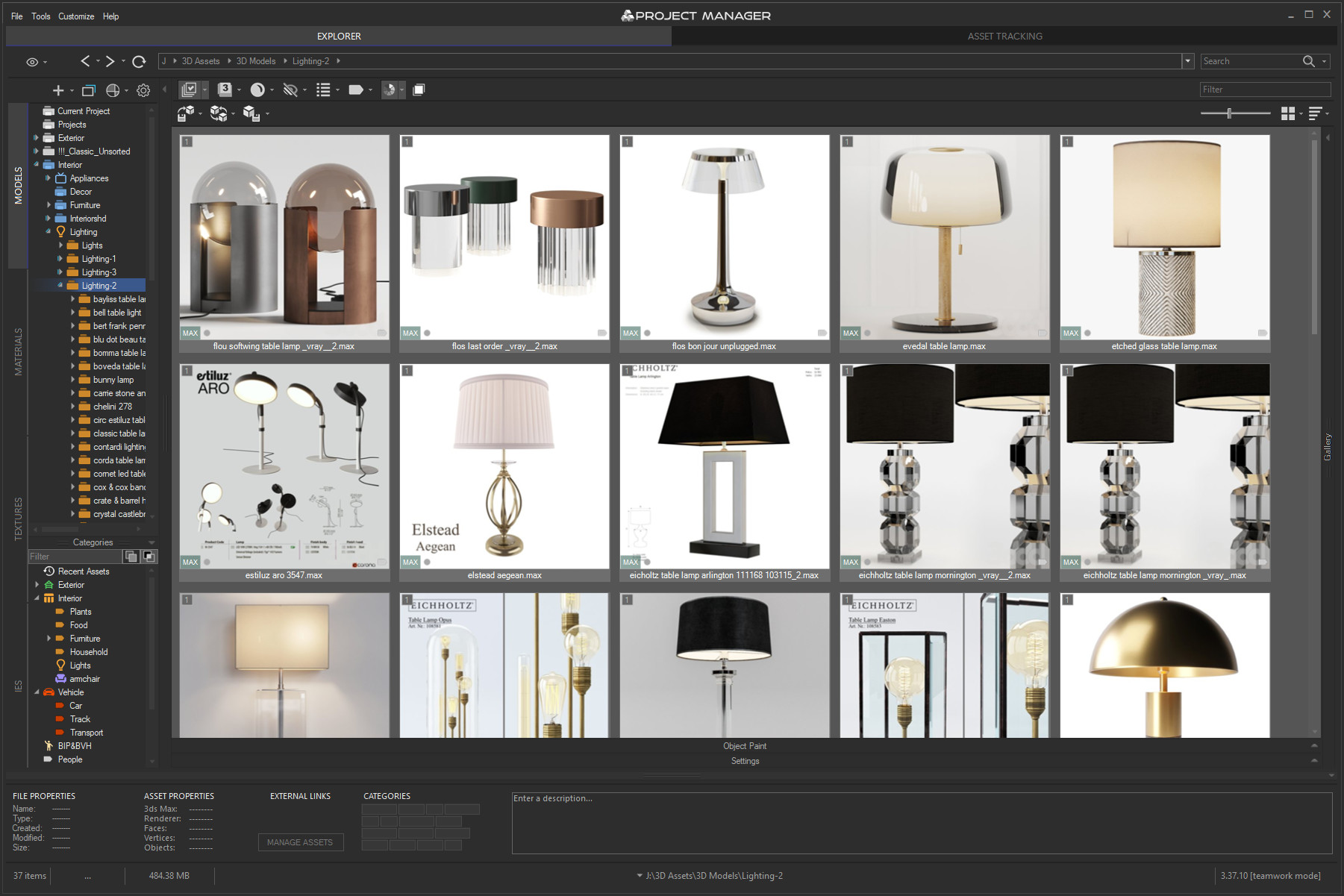
Models 3D Models Browser
Materials Materials Browser
 
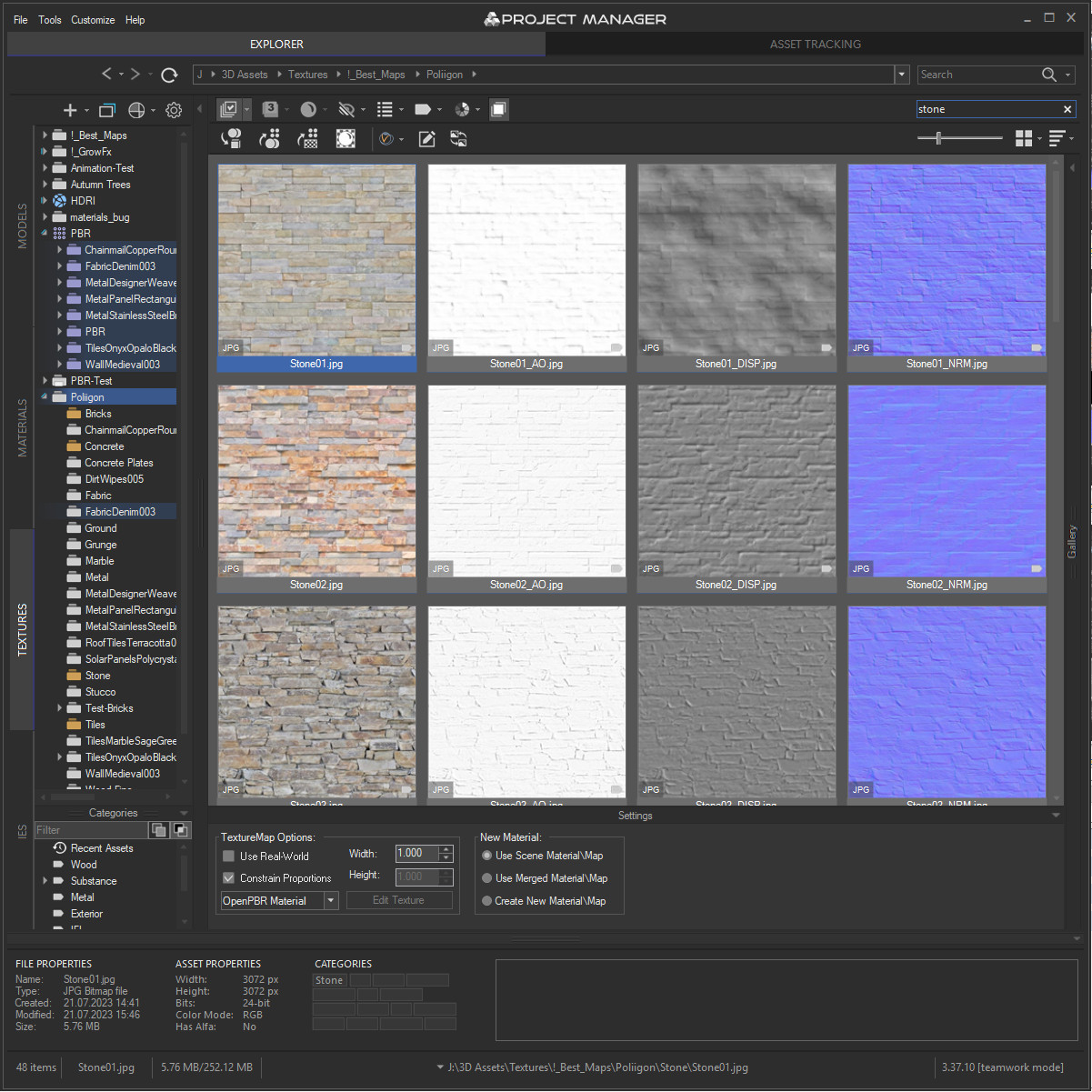
Textures Textures Browser
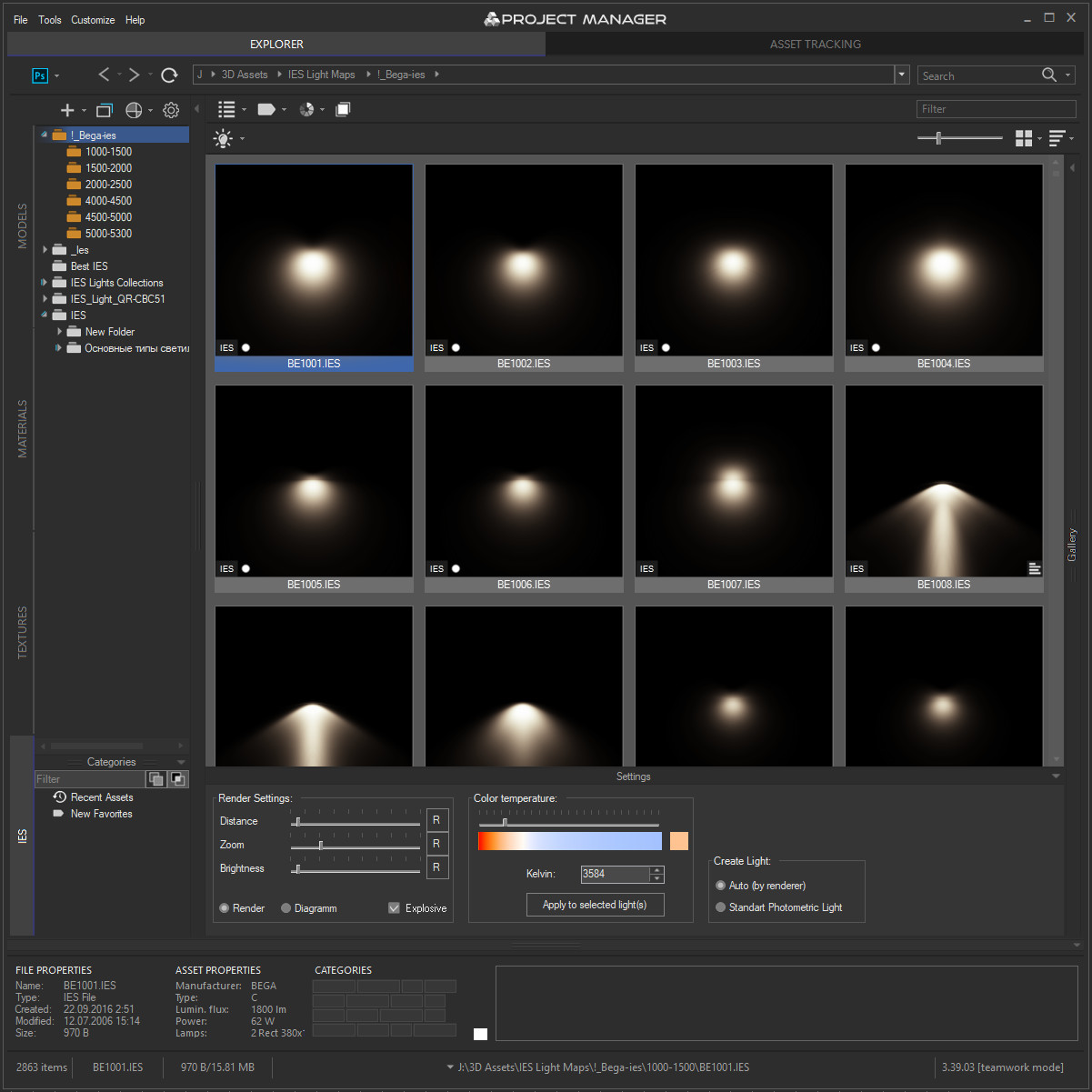
IES IES Photometric Browser
Asset Files Asset Tracking

FilePathFinder Pro & Light versions

410 votes

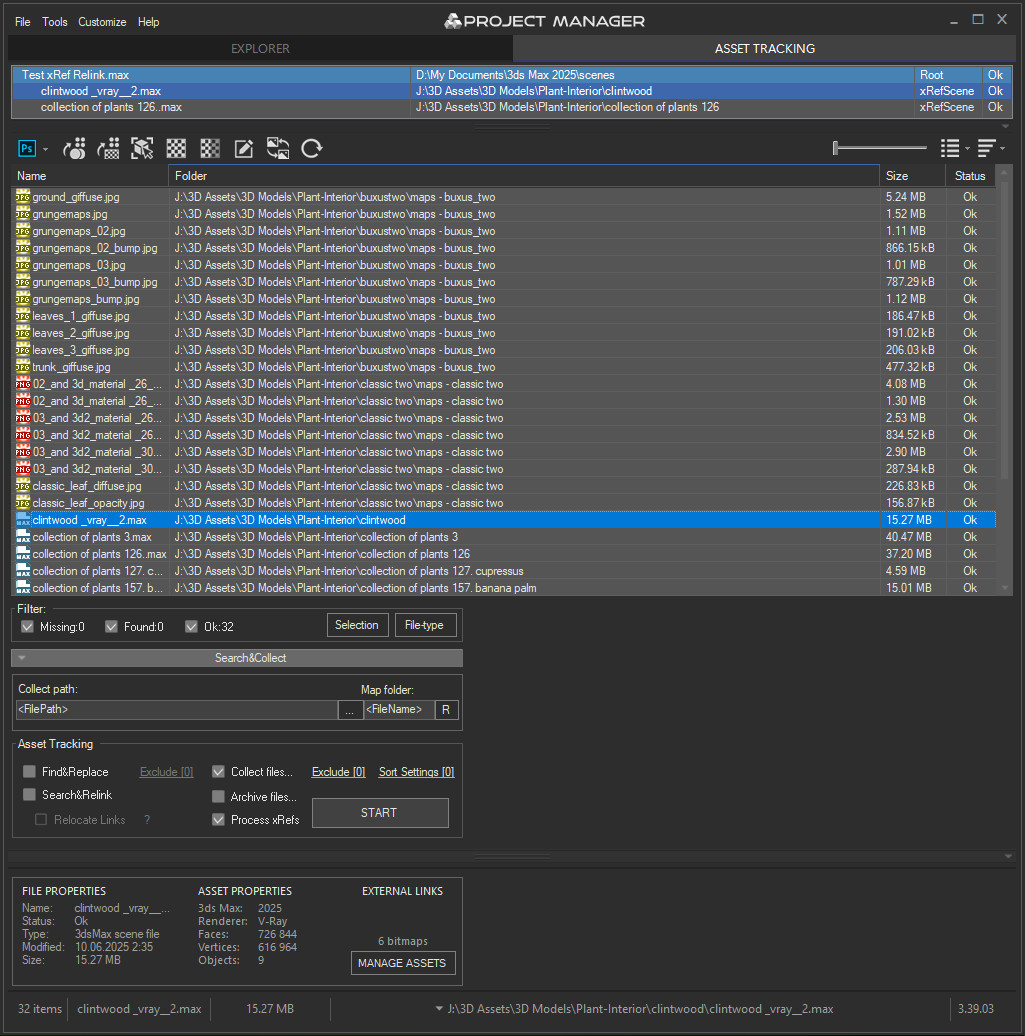
Using the FilePathFinder you can be sure that you have complete control over external links into your scenes.

Asset tracking features include support for XREF files and easy linking with external files.

Using the FilePathFinder (and Batch Render&Relink), you can search for missing assets and relink external files.

In addition, files that are linked to selected objects are displayed in Interactive Mode, and bitmap textures can be toggled and placed within the Material Editor.

Also with this tool, you can easily make an archive a 3ds Max scene.

Note that FilePathFinder supports the highest number of asset types of any plug-in.
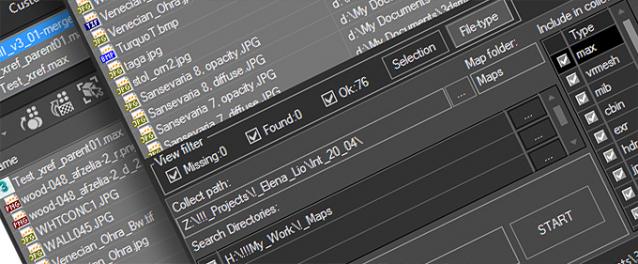
 

The Batch Render&Relink tool helps manage your asset files into the 3D model and material libraries in Batch Mode.

BR&R is capable of rendering thumbnails for 3D models, materials, and IES photometric files.

Batch Mode makes for an easy way to gather and compile many assets at once.


The new version of FilePathFinder is released with support to 3ds Max 2026

and many new features that improve managing scene assets

FilePathFinder Pro version 4.17.01

  • Adds support to 3Ds Max 2026
  • Play IFL, and animated GIFs directly in the list view
  • Play IFL and animated GIFs in the external Asset Viewer
  • Ability to change selected assets directly from the Asset Viewer using keyboard shortcuts
  • Adds an ability to include/exclude search directories by filename
  • More accurate material/texture placement in SME
  • Drops support to light theme
  • Fixes an issue with including/excluding search directories by filename
  • Fixes an issue with searching, relinking, collecting, and archiving the content of IFL files
  • Fixes an issue with relink assets in batch mode for Demo version [Batch Render&Relink]
  • Fixes an issue with renaming external scene links with status #Found
  • Fixes some issues with relink assets using exclude directories
  • Fixes a bug with relinking assets in huge scenes
  • Fixes a bug when using the tool together with Materials Manager and Models Manager
  • Some other optimizations, fixes and speed improvements

Purge Unused Materials

2 votes

A simple macroscript to delete all unused materials from the Compact Editor Material Slots AND the Slate Material Editor Views.
The Compact Editor Code is from the existing Macro found under the Compact Material Editor "Utilities" menu.
I have added the code to also purge the SME at the same time.

You might want to check out the "Purge Empty Layers" macroscript as well. There are some awesome scene management tools out there but these are both small, simple tools without a lot of overhead for doing a little housekeeping before saving your file.

Select By Material

6 votes

'SELECT BY MATERIAL'


LATEST KEY FEATURES:

- Select multiple node/s in SME.

- Unhides and hides objects on scripts second run.


    --============================================================

Script which allows easy selection of materials inside Slate Material Editor and Compact Material Editor over 3ds max standard method.

Benefits over maxes built in way:

Get Materials (one click!)

4 votes

A very simple but EXTREMLY USEFUL script you will use all the time!

With just one click it opens the Slate Material Editor and displays all the materials for the selected objects well organized in a clean view.

Forget about the annoying material picker tool. Add this simple button to your toolbar and every time you want to see the material/s for your current selected object/s just click the button and... Voila!

It will save you a lot of time!

Slate Connector

5 votes

SlateConnector

SlateConnector - Makes the everyday task of exposing nodes and adjusting material parameters easier and faster! New version (0.59a) with lots of impromevents!

Populate Material Editor

2 votes


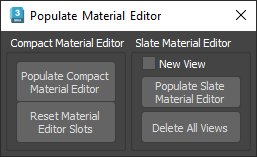
This script will, load selected objects materials in the chosen material editor ( slate or compact ),

there is also a "Reset Material Editor Slots" button, that clears the material editor and replace each slot by a new material of the current renderer, it works for Vray, Corona, Arnold, F-storm and Octane, else it will create some 3dsmax physical material instead.

Select Objects By Sub-Material

0 votes

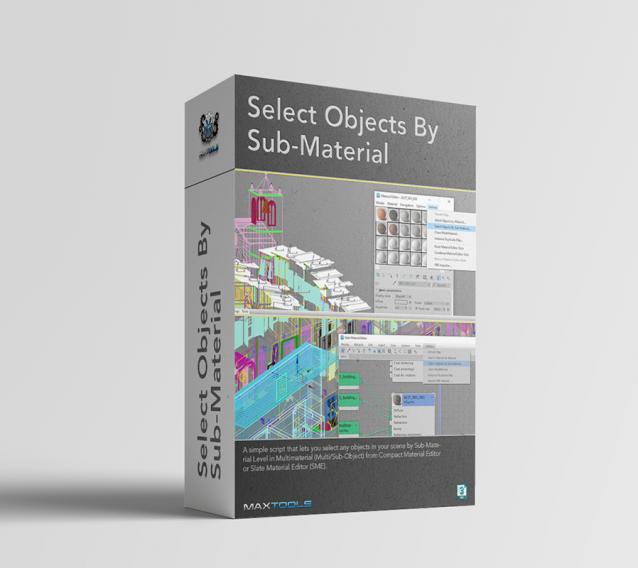
Select Objects By Sub-Material (SOBSM) is a simple free script that allows you to quickly select all objects in your scene that use a selected sub-material from a Multi/Sub-Object material.

Unlike the native "Select Objects By Material" tool, which only selects objects by exact main (parent) material match, this script analyzes material IDs assigned to faces/polygons. This allows you to select objects by a specific sub-material, even when a Multi/Sub-Object material is assigned to the entire object and the desired sub-material is only used on a portion of its faces.

The script works with both material editors in 3ds Max - the Compact Material Editor (Medit) and the Slate Material Editor (SME). Select a sub-material in any editor, run the script, and all objects that use this sub-material (on faces with the corresponding ID) will be selected.           

Syndicate content