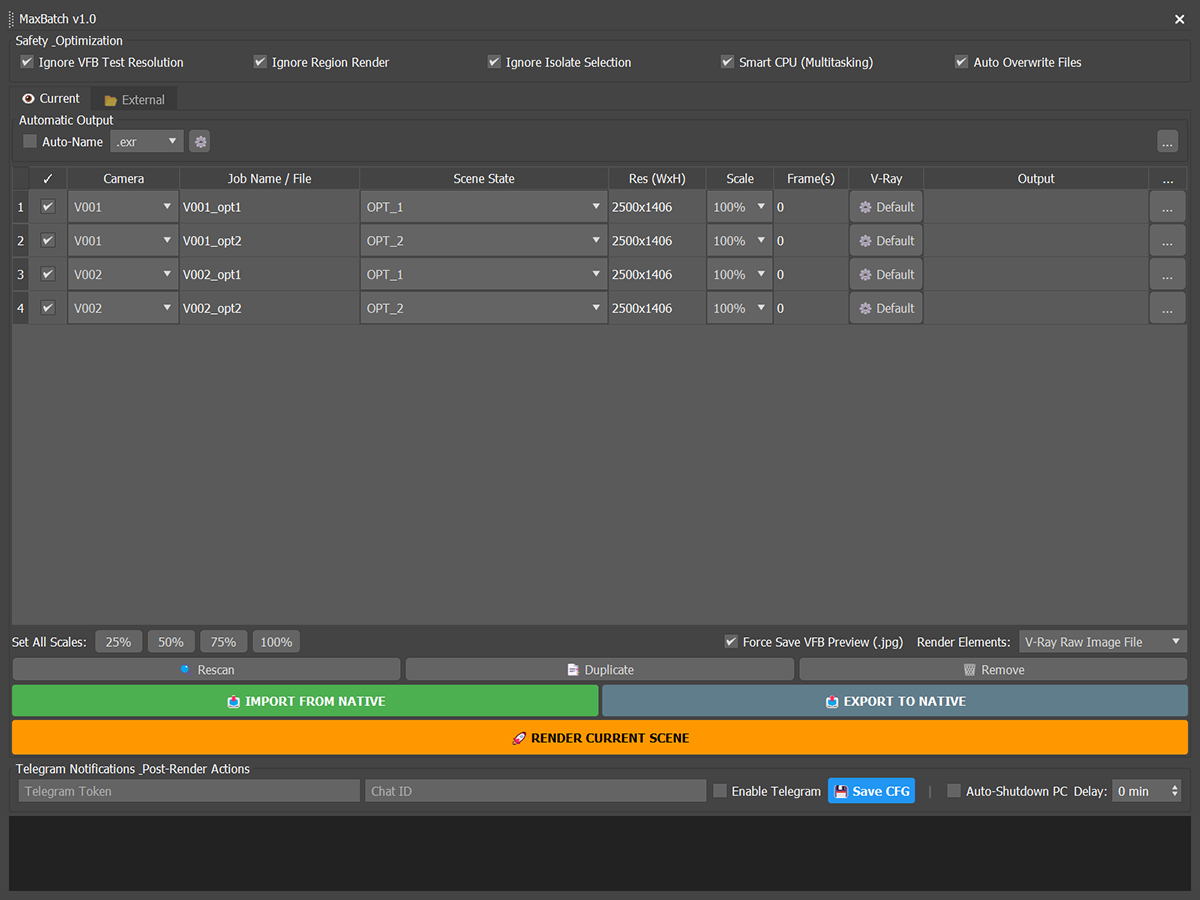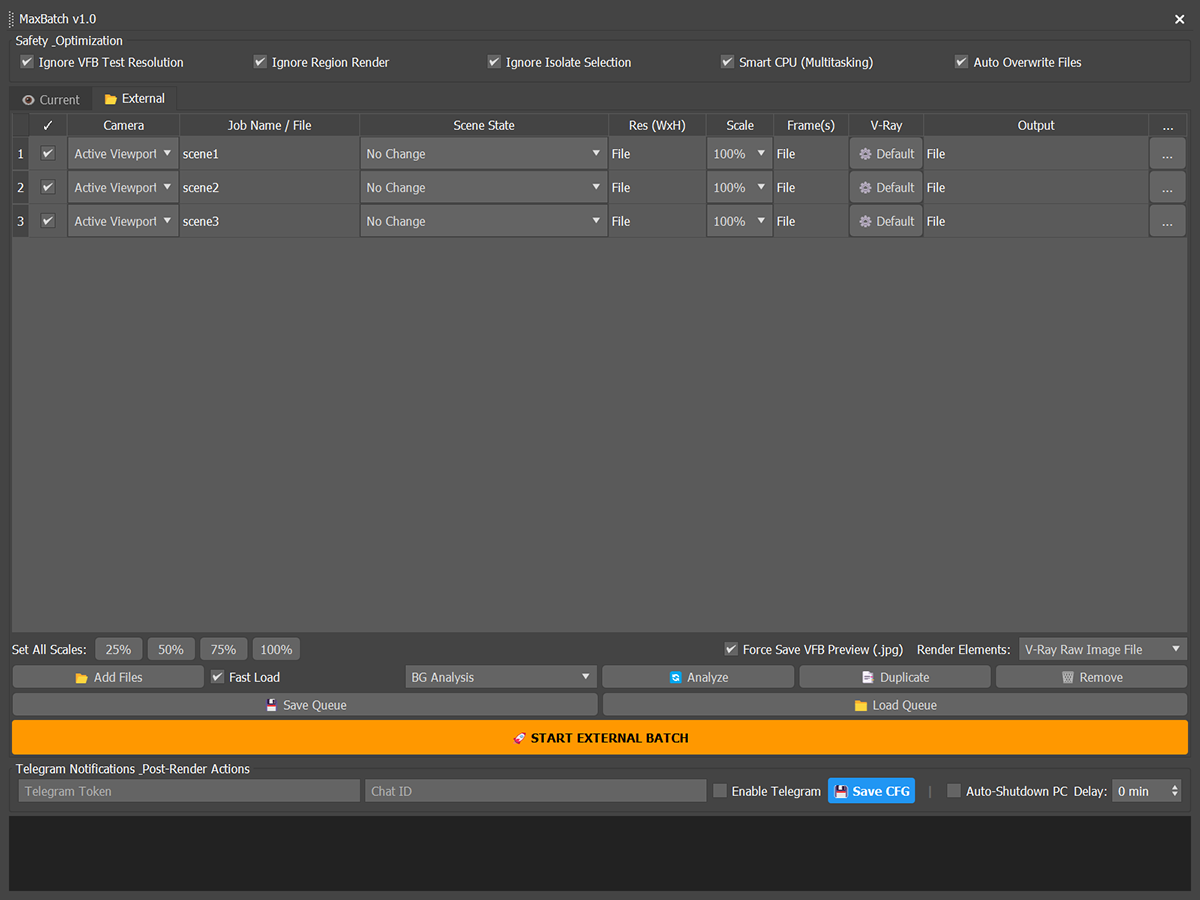
MaxBatch is a comprehensive batch rendering utility for 3ds Max. It provides a structured interface to queue and manage multiple rendering tasks, whether you are rendering multiple cameras within your active scene or processing a list of external .max files sequentially. It is specifically optimized for V-Ray 7 and Corona 14.
Core Features:
Current & External Queueing: Render multiple cameras and Scene States from the currently open file, or build a queue of external .max files to be processed automatically.
Per-Camera Overrides: Define specific resolutions, output aspect ratios, scaling percentages (e.g., 50%, 100%), frame ranges, and Scene States for each individual camera.
Engine-Specific Settings: Apply specific render limits per job. Set custom noise thresholds, time limits, subdivs, or pass limits directly from the queue, overriding the scene's global render setup.
Output Management: Native integration with V-Ray's Separate Render Channels and Corona's Raw Image (.cxr). Includes an Auto-Name feature that generates output paths based on scene name, camera name, and date.
Native Format Configurations: Access native 3ds Max configuration dialogs for image formats (EXR, TIF, PNG, JPG) directly from the tool's interface to set bit-depth and compression.
Telegram Integration: Connect a Telegram bot to receive live status updates and final rendered image previews directly to your device as each camera finishes.
Safety Overrides: Built-in safeguards that automatically disable "Isolate Selection", "Region Render", and "Test Resolution" before rendering starts to prevent invalid outputs.
Unattended Operation: Includes an auto-clicker to bypass standard "File already exists" overwrite warnings, and a smart CPU multitasking toggle that adjusts process priority, ensuring long queues complete without user intervention.
Requirements:
Autodesk 3ds Max 2024+
V-Ray 7
Corona 14
Installation:
Simply drag and drop the provided .mzp file into your 3ds Max viewport and follow the on-screen instructions. Upon the first launch, you will be prompted to enter your Gumroad license key.
MAXBATCH: PRO TIPS & HIDDEN FEATURES
MaxBatch is designed to minimize clicks and maximize efficiency. Many of its most powerful features are built directly into the UI workflow or operate silently "under the hood." Here is how to unlock its full potential:
Lightning-Fast Workflow UI
Instant Scene Sync (Double-Click): Double-click any Job row in the Current tab. MaxBatch will instantly set the active viewport to that specific camera, restore its linked Scene State, and update the 3ds Max render resolution. See exactly what will render without manually changing a single setting.
Smart Resolution Input (Aspect Ratio Lock): When typing in the Res (WxH) column, you don't need to type both numbers:
Type 1920x1080 to force an exact custom size.
Type just 1920 (or 1920x), and the script will automatically calculate the height while maintaining your scene's current Aspect Ratio.
Type x1080 to automatically calculate the width based on the height.
Flexible Frame Syntax: The Frame(s) column smartly accepts standard inputs: type 10 for a single frame, 1-100 for a full animation sequence, or 1,5,15 to pick specific frames. MaxBatch configures the render dialog accordingly.
Smart Context Menu (Right-Click): * On the Job Name: Rename the job (includes a duplicate-name safeguard to prevent overwriting files), remove the row, or click "Open Folder" to instantly open the Windows directory where that specific render is (or will be) saved.
On the Res column: Force the cell's resolution into your 3ds Max Render Setup ("Set as Scene Resolution"), or pull the current 3ds Max resolution directly into the cell ("Get from Scene Resolution").
Advanced Configurations
Native Format Setup (The Gear Icon): Next to the Auto-Name dropdown is a gear icon. Clicking it summons a native 3ds Max dialog trick. Click the "Setup" button inside to configure native image parameters (like EXR compression/bit-depth, PNG Alpha, or JPG quality). MaxBatch will memorize these exact settings for all subsequent renders.
Per-Camera Render Limits: Click the "⚙️ Default" button in the Settings column to open a dedicated panel for your active engine (V-Ray or Corona). Set specific Time Limits, Pass Limits, or Noise Thresholds for that specific shot only. Perfect for queueing a quick 2-minute draft followed by a 4-hour final render in the exact same batch.
Live Output Path Preview: While typing in the "Select Project Folder" bar, a grey italic text will appear, showing you a real-time preview of the exact file path and date-based subfolders the script will generate (e.g., folder/260316/_.exr).
"Under the Hood" Automation
Ghost Clicker (Auto-Overwrite Protection): If "Auto Overwrite Files" is checked, the script deploys an invisible DialogMonitor. If 3ds Max throws a "File already exists, overwrite?" popup at 3 AM, the Ghost Clicker hits "Yes/OK" in a millisecond. Your overnight queue will never stall again.
VFB Direct Memory Injection (V-Ray Fix): Using V-Ray's "Separate Render Channels" with native batch rendering is historically prone to file-locking errors or crashes. MaxBatch entirely bypasses the 3ds Max native save system, injecting your output paths directly into V-Ray's VFB memory via PyMXS. This guarantees flawless multi-pass saving (including EXR).
Smart CPU (Tactical Multitasking): When rendering begins, MaxBatch automatically drops the 3ds Max OS process priority (to Below Normal) and sets low thread priority. You can keep using Photoshop, watching videos, or working in a second 3ds Max instance without your PC freezing. Once the render finishes, priority is automatically restored.
Hybrid Memory System: MaxBatch is smart. All queue data in the Current tab is invisibly saved directly inside your .max file. Hand the file to a colleague who has MaxBatch, and the queue is already there. Conversely, External tab settings are saved locally to your PC, persisting across all future 3ds Max sessions.
RAM-to-Telegram Delivery: The script doesn't just send a text message. It grabs the final rendered image directly from the VFB RAM, converts it to a lightweight JPG, and shoots it to your Telegram app. Once sent, the temporary image is instantly destroyed to keep your hard drive clean.
Telegram Notifications
Get live updates and actual render previews sent straight to your phone.
Setup Instructions:
Open the Telegram app and search for @BotFather.
Type /newbot and follow the prompts to create your bot. BotFather will give you an API Token. Paste this into the Telegram Token field in MaxBatch.
Search for @userinfobot on Telegram and hit Start. It will give you your personal ID number. Paste this into the Chat ID field.
Check Enable Telegram and click Save CFG.
Screenshot: