 By miauu · 2011-04-13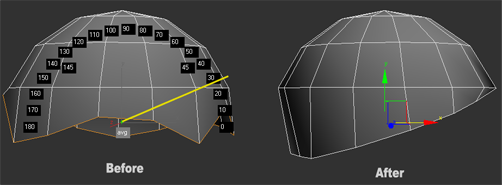
Work only with Editable Poly objects.
The video show all that the script can do. Reference coordinate system must be "Screen", can align verts, edges or faces.
"avg"(average) button will align selected subobject elements and sometimes the result will be the straight line, but sometimes will not.
Pressing the "0" or "180" button will align directly on Y axis.
Other buttons have two methods of aligning(straightening):
- LMB - the selected elements will be aligned perpendicular to the "angle line"(the line between the "+" sign and the pressed button).
- Shift+LMB will align the selected elemets on Y axis and then will rotate them to selected angle.
The script will try to preserve the edge flow of selected subobject elements as possible.
Yuo can straighten to any angle by pressing the LMB and drag the mouse. The yellow line will serv yuo as a guide line. The angle, when draging the mouse, can be seen in the status bar and in the mini listener When you choose the angle release the LMB and move the mouse.
Watch the video demonstration.
Installation: Drag and drop the mzp file in 3ds max. Go to Customize-Customize User Interface - "miauu" category.