By grover_gol · 2012-07-24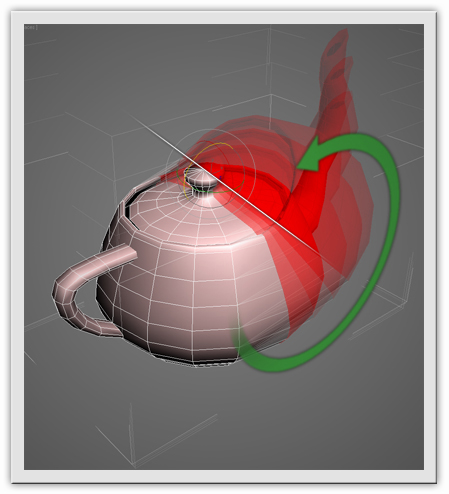
Description
“Transform by edge” allows to transform (move, rotate, scale ) sub-object selection in selected edge coordinate system.
How it works
1. Apply "Editable Poly" modifier to your object.
2. Select an edge which you want to be Z axis.
3. Press "transform by edge" script button.
4. Now you can work in selected edge coordinate system and select any sub-object level to manipulate.
5. To finish script action just press"transform by edge" script button again, or go to zero sub-object level.
Setup
1. Download and unzip "TBE_setup_archive.zip". 2. For right installation in Windows 7 you need admin rights to change the "Scripts" folder , which is located in the root folder of 3ds Max. To get these rights do this: right-click on the folder "Scripts", select "Properties", then in the "security" set full access to the current user. 3. After receiving administrator rights on "Scripts" folder changing, just drag and drop "TBE_setup.mzp" in the 3ds Max window. In the case of a successful installation, this screen appears:
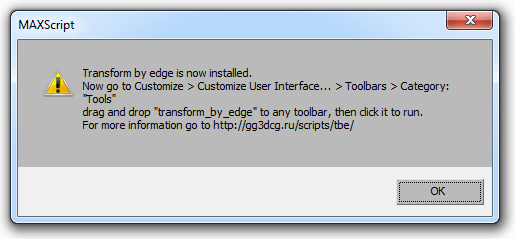
This means that the script was successfully installed. Now go to: Customize > Customize User Interface... > Toolbars > Category: "Tools", find the list " transform_by_edge" and drag you to a convenient toolbar.