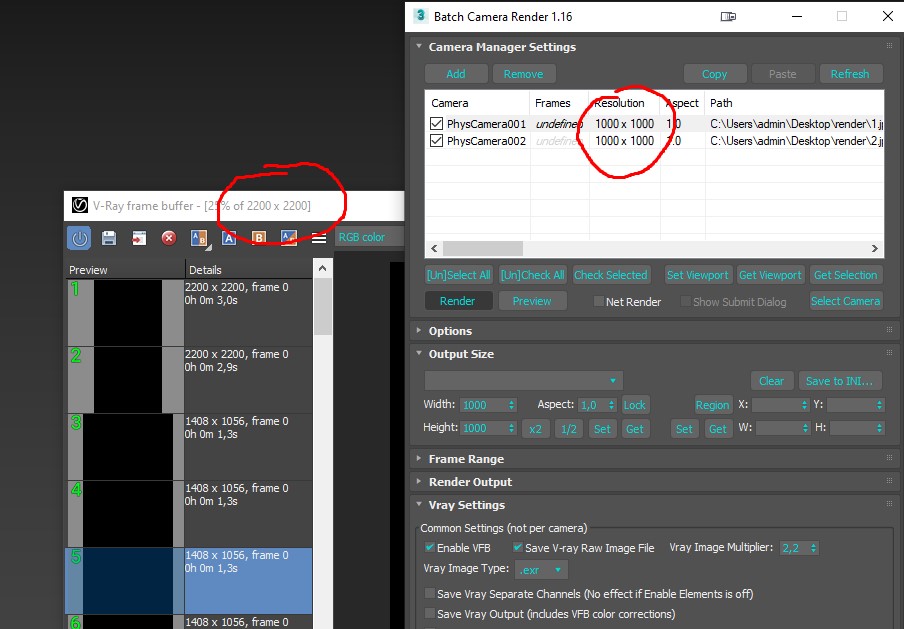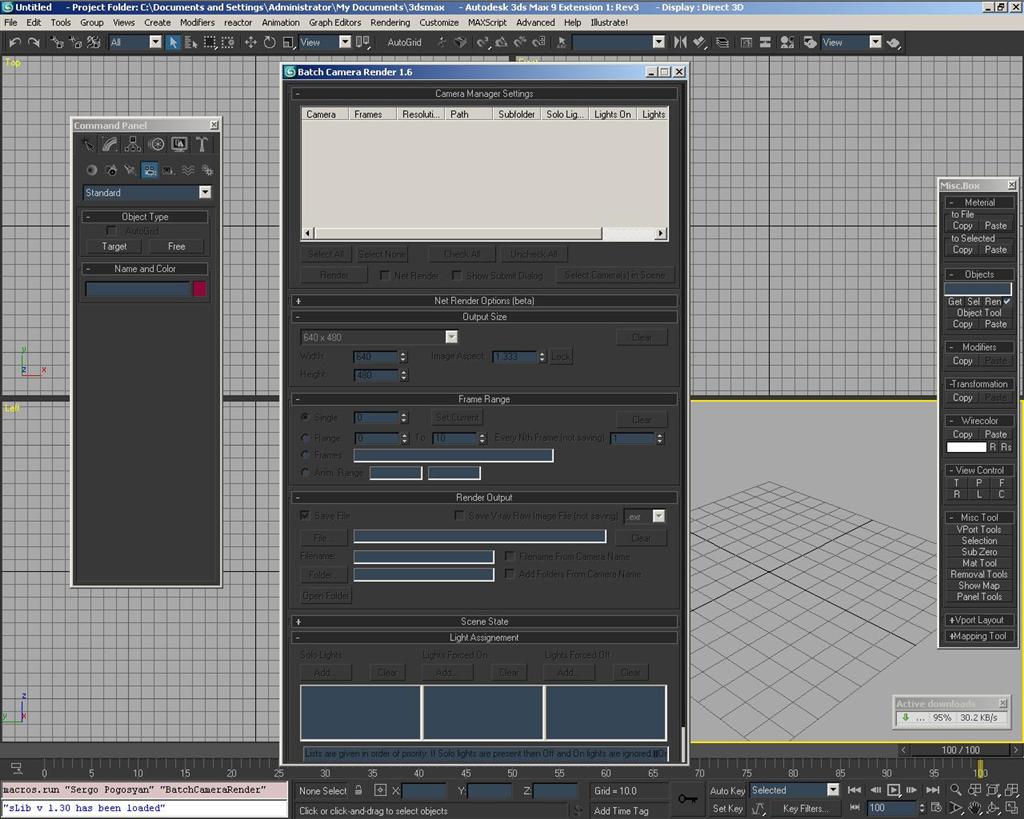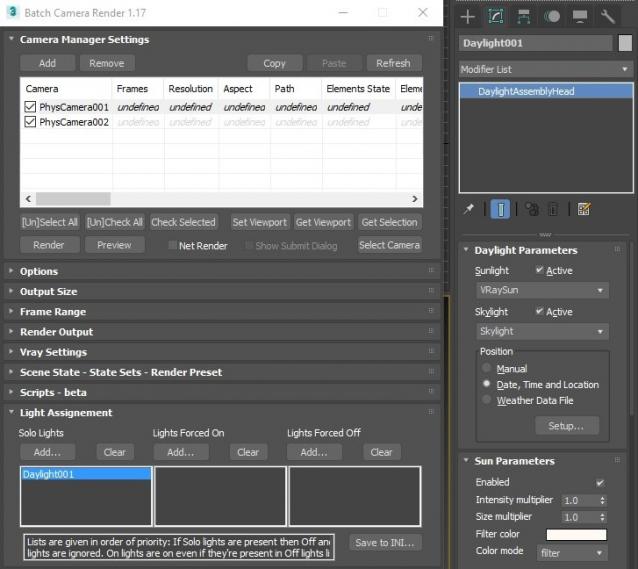
This script aims to replace standard 3dsmax's Batch Render and imitates Houdini Output Node workflow. Using it you can specify rendering parameters - frame size, frame number, output path - directly to camera object, so every camera in scene 'knows' what it intended to render. Additional functionality is Lighting Assignment - you can specify which light will be turn on or off for selected camera during the rendering.
1.19:
- Support 3ds max 2026
1.18:
- Support for 3ds max 2023 Update fixed
1.17:
- Corona and Vray Sun inside Daylight System fixed (thanks to busseynova for reporting)
1.16:
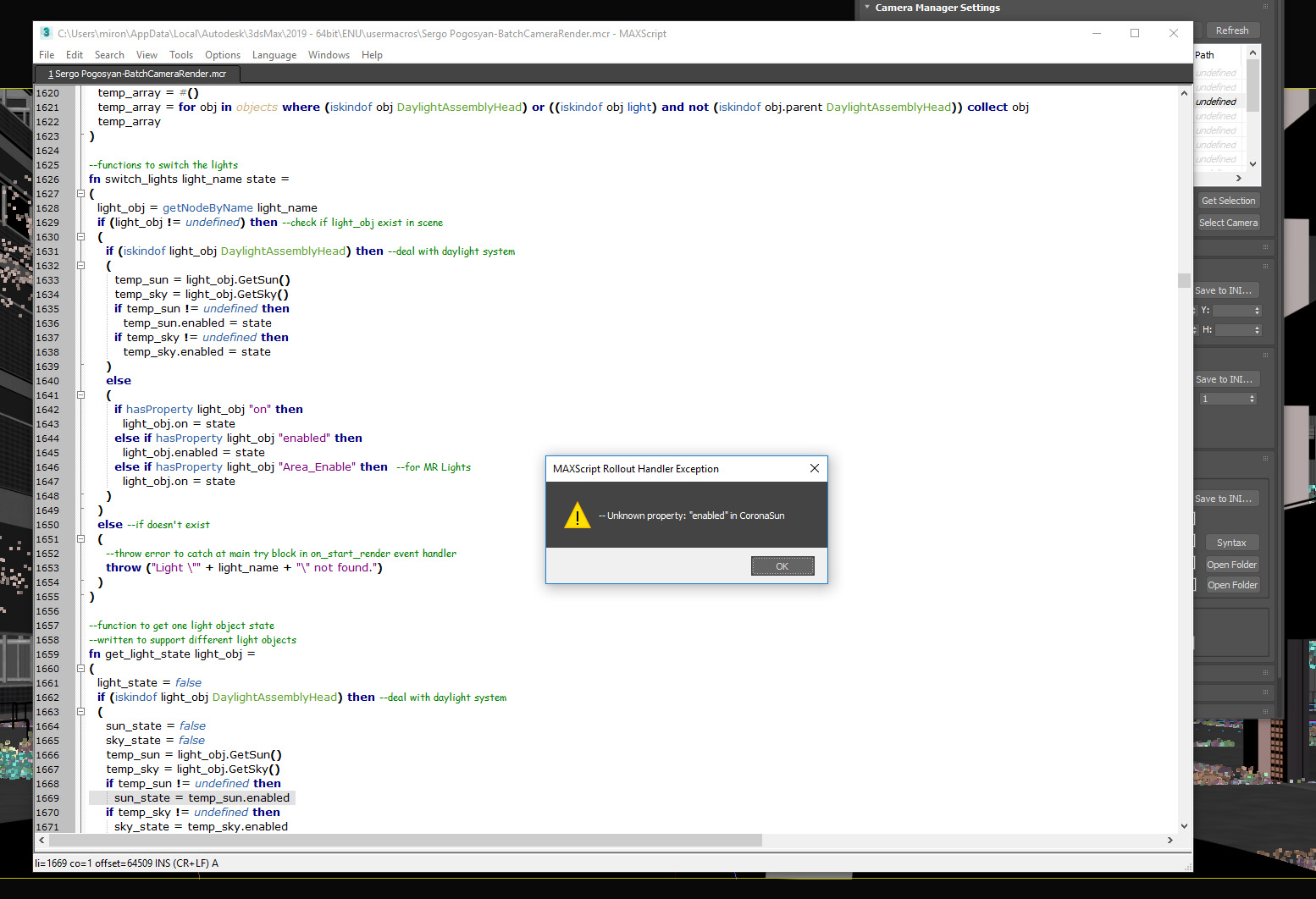
- CoronaSun supported inside Daylight System
1.15:
- Don't Save Render Elements Checkbox (Thanks to antomor)
- Limited support for camera objects in xref scene files (Only root objects in first level xrefs. Cameras in nested xrefs not supported)
1.13 Bugfix:
- Deadline submission should work now
1.12 New Feature:
- Deadline support.
Very basic imlementation, it allows you to submit your jobs on a deadline server. Enter deadline repository address and check "Use Deadline" checkbox. Other checkbox doesn't matter in this case ("Net render", "Show Submit Dialog").
Probably it requires Deadline 3ds max Submitter installed. I didn't have a chance to check it on a clean machine.
1.11 Features and fixes:
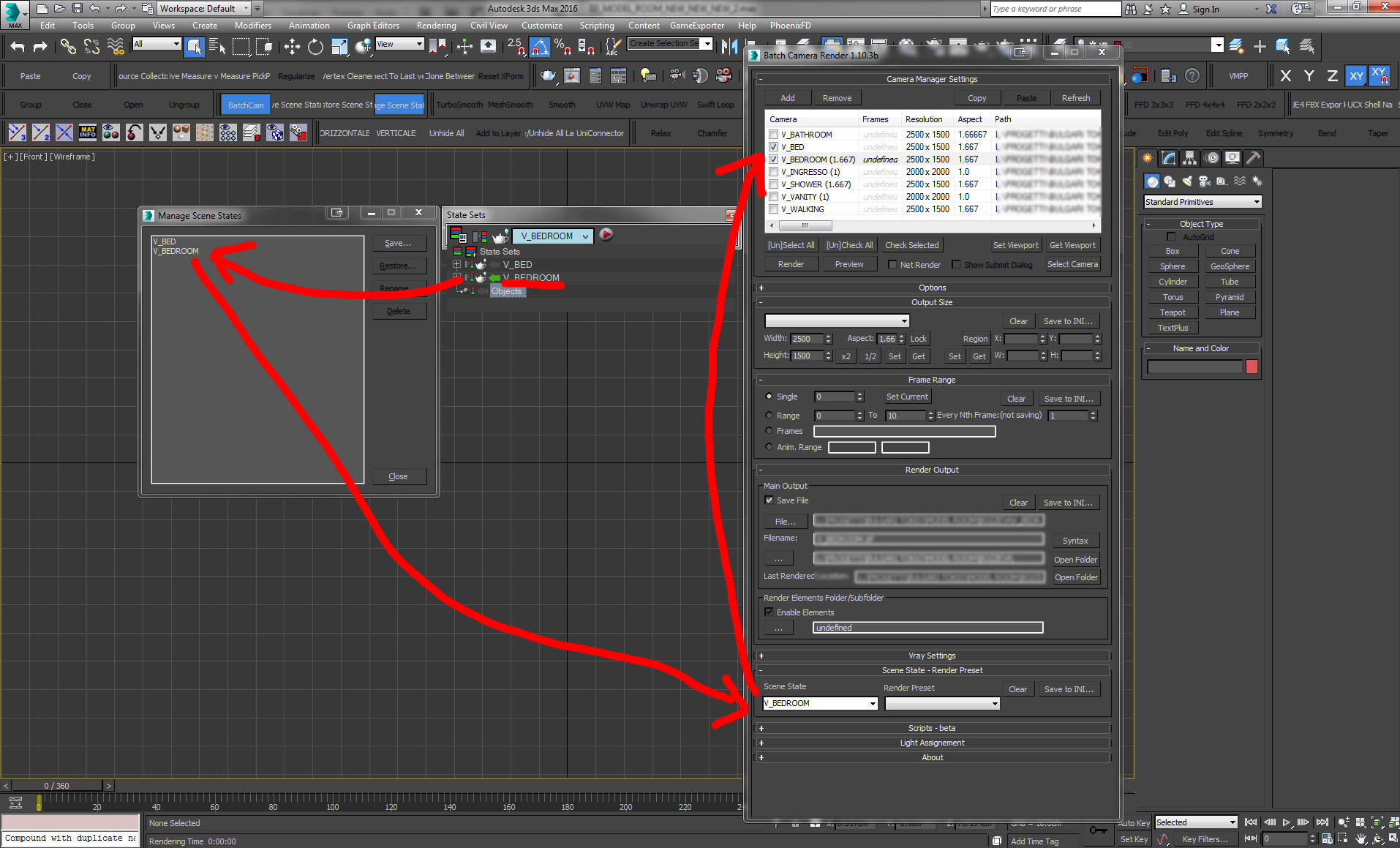
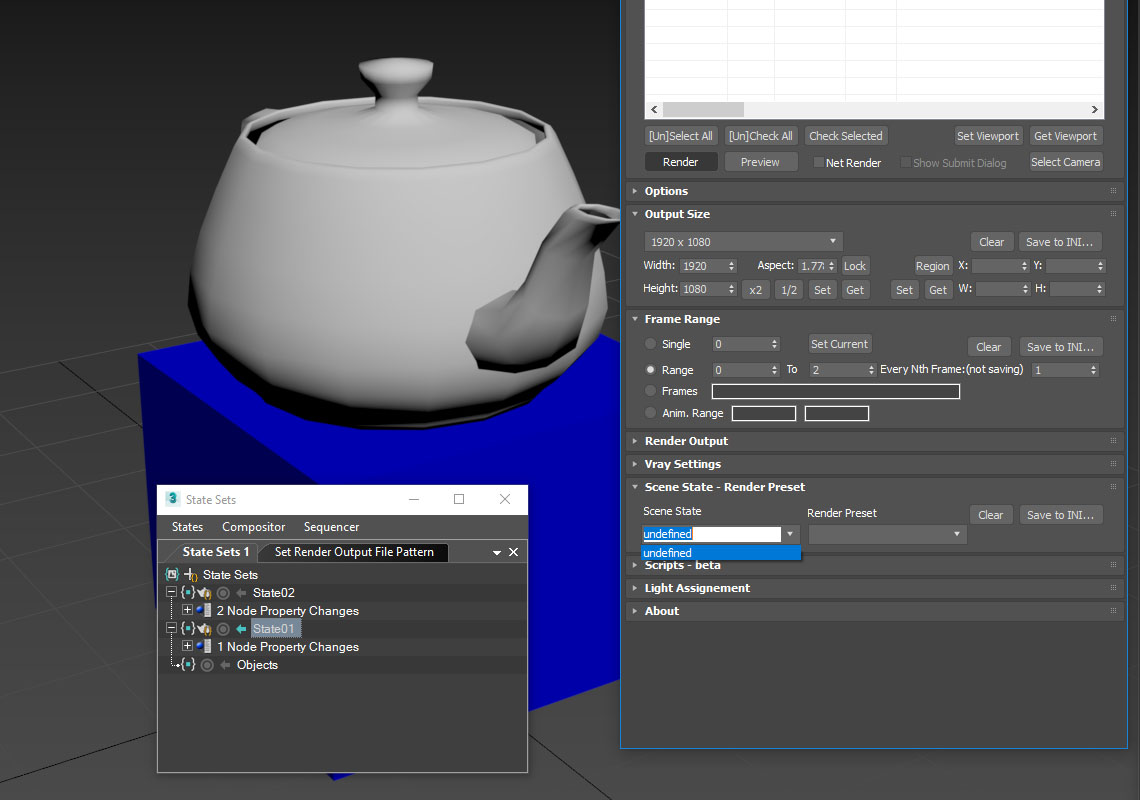
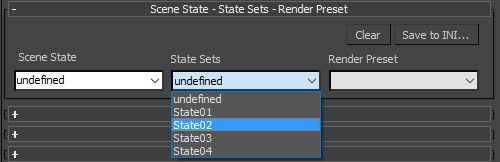
- State sets support added
- "projectname" keyword added which resolves to project's folder name
- other fixes and improvements
1.10.3b Fixes:
- Crash when vray ir/lcache maps are set to auto-save
- Region render was not set properly during the rendering
This is major update of the script, so it may not be as stable as before. Backup scenes or cameras at least before running this version. More information can be found here - 1.10b Multiple presets for each camera
Previous updates:
1.10.2b Fixes:
- Problems with render elements paths
- Copy/paste of render region settings
- Properly convert render region values when change resolution
New features:
- Multiple presets for each camera
- New keyword %presetname% to support multiple presets
- Distributed rendering checkbox added to vray common settings
- Bugfix - Net render not starting after cancelling during local rendering.
- Improved performance with scenes with lots of cameras
- Added support of Vray RT as a production renderer
- Added support of using MFRender script to render scenes through BatchCamera script.
- Bugfix - Error was popping up sometimes during drag-n-drop
- Bugfix - Render elements didn't render in certain conditions
- Bugfix - Pre-render/post-render scripts didn't work on network rendering
- Bugfix - Select All and Toggle All buttons didn't work properly
Here are some details: http://usakhelo.github.io/batchcam/batchcam-1.9.20.html
Script's website - http://usakhelo.github.io/batchcam/
Github - https://github.com/usakhelo/batchcam
2015 Updates
- Region render parameter can be specified for each camera
- Set Viewport button sets viewport camera and resolution and aspect as well
- It is possible now to specify backburner servers and server groups for silent rendering submit (code editing required)
- Vray Elements fixed for Vray 3 and Vray output saving with VFB color correction
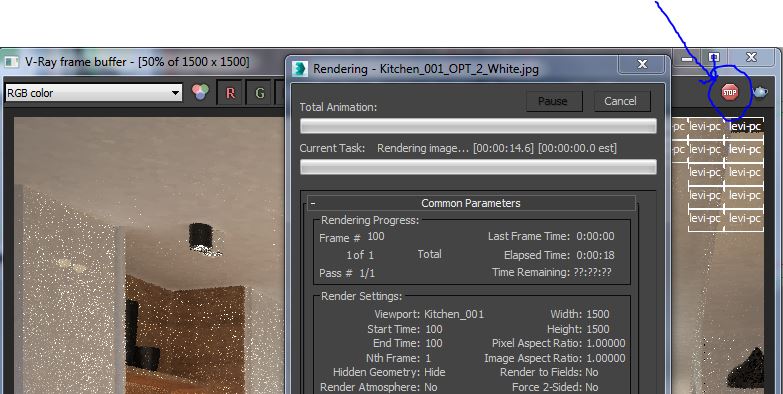
- Cancelling of rendering of multiple cameras at once,
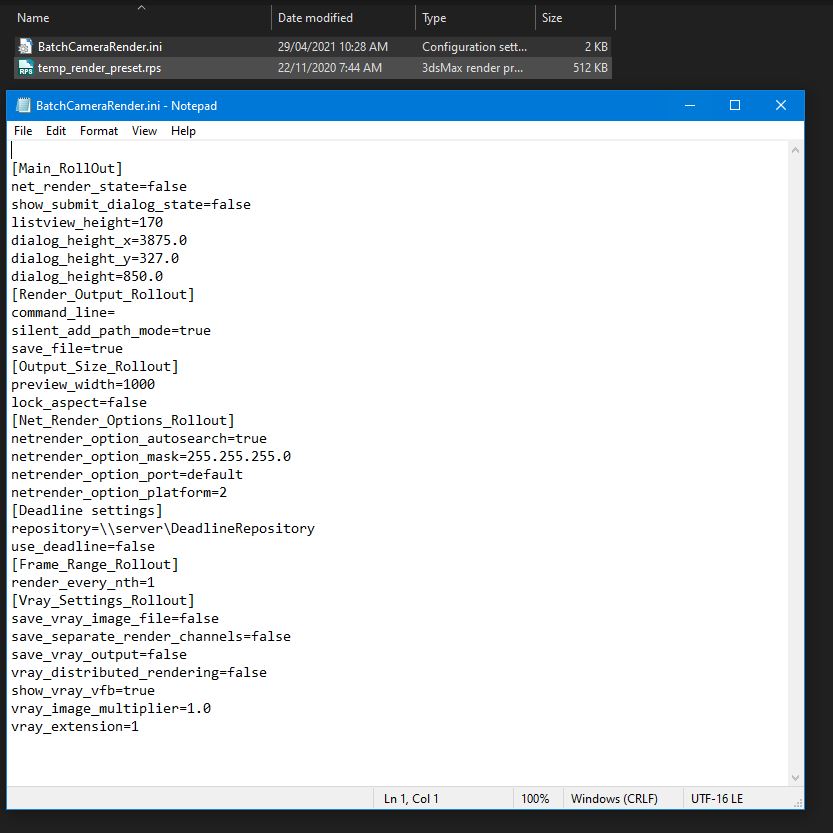
- Hierarchical ini files
2013 Updates
- Drag-n-drop of cameras in list
- Camera list window size can be changed (script restart required)
- When committing region render it is possible to switch to view render without restarting the render
- Keyword syntax can be used in Scene State names - thanks to Stefan Runevik for suggestion
2011 Updates
- Preview button added - renders only current frame without saving anything - no images, no vray maps, no scripts running, no elements.
- Ortho mode added to Vray rollout - it turns any camera to orthographic, including Vray Physical camera.
- Copy/Paste from one camera to one/several cameras - use new buttons at the top of the window.
- Submit Scripts section - you can assign script files that will run on each render submit. Per Submit script runs once per render submit and Per Camera script runs for each camera before submit. All these scripts run on local machine, not on render server.
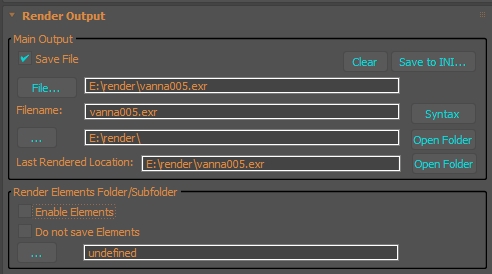
- Last Rendered Location field - here is stored last render file location. Very useful for locating last-time rendered images.
 Waseem3D · 2024-11-06
 hannes · 2023-02-23
 PaleBlue.Design · 2022-06-02
 pfbelesa · 2021-03-06
 arcadio · 2020-01-26
 wolh · 2019-12-12
 todor · 2019-12-02
 antomor · 2019-09-04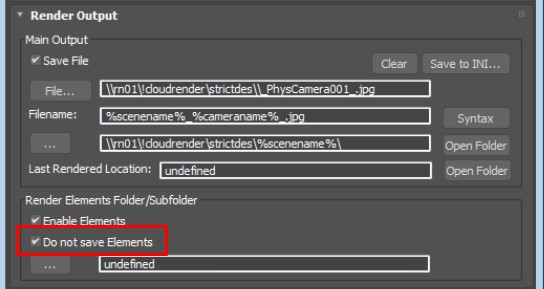
 MyGalaxy · 2018-06-22
 crystal3d · 2017-11-22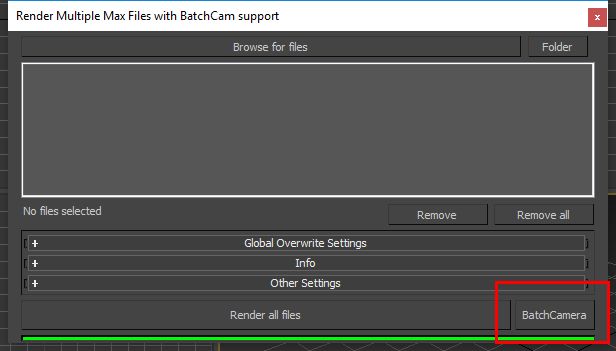
 Vadim Sadykov · 2015-09-26
 subfeel · 2015-03-08
 asymptote · 2015-03-08
 Waltez · 2015-03-07
 NicolasC · 2015-02-03
 birket · 2014-01-27

 GushingDizzy · 2011-07-12
 sxp · 2011-03-23
 pressenter · 2010-04-10
 gfa2 · 2009-12-17
 Kstudio · 2009-12-15
 le1setreter · 2009-10-26