Tagged 'Material'

Project Manager

597 votes

After a long stretch of development, Project Manager 4 is officially out — the biggest release in the product's history, and now with full 3ds Max 2027 support.
The headline is AI Asset Classification.
Your library gets sorted automatically — by object type, material, and style — no manual tagging.

Project Manager 4 — What's New Since v3

Changelog · 3ds Max 2016–2027

AI-Powered Asset Classification

  • Automatic categorisation of 3D models and textures by object type, material, form, and style — no manual tagging required
  • Runs entirely on your machine — no cloud, no subscription, your assets never leave your computer
  • GPU-accelerated background processing at low priority — won't interfere with rendering or active work
  • Reclassify specific folders or categories on demand — no need to reprocess the entire library
  • Scale across a team: multiple workstations share the same database and classify in parallel

Colour Tools

  • Find assets by colour — pick from a palette and instantly see matching models or textures
  • Perceptual colour similarity search — finds visually related assets, not just exact hex matches
  • Find Similar by Colour in the right-click menu for models and textures

Find Similar

  • Find similar by content — AI matches 3D models by style, shape, and visual look
  • Find similar by colour palette — matches assets to a reference image or mood board by dominant colour proportions

Smarter Search & Filtering

  • Multi-keyword search: "Chair, Glass" finds a file named Chair.max described as "glass"
  • Category filter correctly includes all subcategories — filtering Furniture also returns Furniture → Chairs → Dining
  • Combine category and material filters: find glass-and-metal tables, or wooden ones, in one click
  • Categorised / Uncategorised quick filters — see which assets still need attention

Gallery & 3D File Browsing

  • Three gallery tabs for .max files: Models, Materials, and External Links
  • Drag materials directly from the gallery into your open 3ds Max scene
  • 3D viewport preview for FBX, 3DS, OBJ, and other formats — inspect geometry before importing
  • Edit external links inline — fix or replace missing textures without opening the .max file
  • Zoom & Pan for images — inspect textures at full resolution inside Project Manager

Migration & Compatibility

  • v3 and v4 share the same database format — point v4 at your existing library and go; no rebuild required
  • Run v3 and v4 side by side on the same team; supported from 3ds Max 2016 through 2027

Performance & Other Fixes

  • Significantly improved overall performance — faster navigation, filtering, search, and file/folder operations
  • Live sync in shared database mode — changes by colleagues appear automatically without reloading
More about new features   Project Manager version 4
 

V-RayMax Converter PRO

168 votes

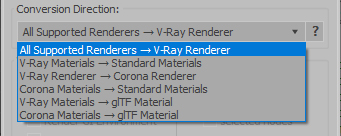
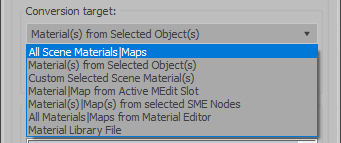
V-RayMax Converter PRO is the best tool for convert 3d scene (materials, maps, lights, cameras, proxies, modifiers, helpers, render elements, etc.) from other render engines to V-Ray and from V-Ray to Corona Renderer, and also for converting V-Ray and Corona materials to Standard/Physical/PBR/OpenPBR materials and to glTF Material.

Current version: 4.0061

Supported for conversion:

To V-Ray from:
  • Standard (Default Scanline)
  • Corona Render
  • FStorm Render
  • Octane Renderer
  • finalRender
  • Arnold
  • Brazil_Advanced (RS v 1.2) material
  • NVIDIA iray (unofficial) material.
From V-Ray to:
  • Standard / Physical / PBR / OpenPBR materials
  • Corona Renderer
  • glTF Material (3ds Max 2023 or later)
From Corona to:
  • Standard / Physical / PBR / OpenPBR materials
  • glTF Material (3ds Max 2023 or later)
Сonversion scope:

Full list of supported conversions.

Main features:

  • Converts materials, maps, lights, cameras, modifiers, helpers and GI environment from other render engines to V-Ray and from V-Ray to Corona
  • Converts clouds from CoronaSky to VRaySun and vice versa.
  • Converts Night Sky system (Moon, Stars & Milky Way) from V-Ray to Corona and vice versa
  • Converts Render Elements to V-Ray (currently supported Scanline RE, Corona RE, FStorm RE, Octane RE) and from V-Ray to Corona
  • Converts V-Ray and Corona materials to Standard (Default Scanline) materials
  • Converts VRayMtl and CoronaPhysicalMtl materials to Physical Material and OpenPBR Material
  • Converts V-Ray and Corona materials to glTF Material (which is necessary for exporting to the .glb for corresponding 3d software: Blender, Gestaltor, Babylon.JS etc).
  • Converts proxies (currently supported from Corona, FStorm, Octane) to V-Ray Proxy (static and animated)
  • Converts V-Ray Proxy to Corona Proxy (static and animated)
  • Converts standard Bitmaps to VRayBitmap and vice versa
  • Converts standard Bitmaps to CoronaBitmap and vice versa
  • Converts 3ds Max Physical cameras to V-Ray Physical cameras and vice versa
  • Automatic configure ACEScg workflow in V-Ray
  • Batch processing for multiple 3dsMax Scene (*.max) or 3dsMax Material Library (*.mat) files
  • Programmatically interact with most converter functions using built-in maxscript methods (API), which allows you to use the converter without UI and in combination with other 3rd-party scripts.
  • ...and more additional tools for fixing and adjusting the scene.

Select Objects By Sub-Material

0 votes

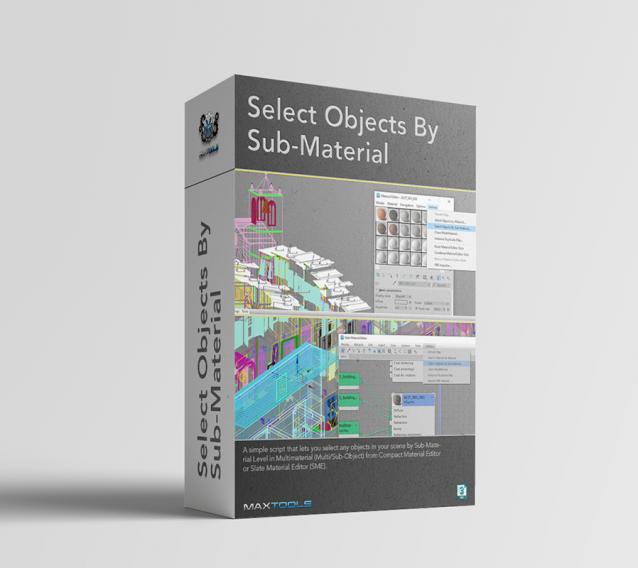
Select Objects By Sub-Material (SOBSM) is a simple free script that allows you to quickly select all objects in your scene that use a selected sub-material from a Multi/Sub-Object material.

Unlike the native "Select Objects By Material" tool, which only selects objects by exact main (parent) material match, this script analyzes material IDs assigned to faces/polygons. This allows you to select objects by a specific sub-material, even when a Multi/Sub-Object material is assigned to the entire object and the desired sub-material is only used on a portion of its faces.

The script works with both material editors in 3ds Max - the Compact Material Editor (Medit) and the Slate Material Editor (SME). Select a sub-material in any editor, run the script, and all objects that use this sub-material (on faces with the corresponding ID) will be selected.           

UnwrapUVW Editor AutOOpen

4 votes


v.2.3 Now, when you run Unwrap UVW_Editor_AutOOpen on an object where Unwrap already exists anywhere on the stack, it will become active in the editor. A new modifier will only be added if there is no modifier at all.

Теперь при запуске UnwrapUVW_Editor_AutOOpen на объекте, где в любом месте стека уже есть Unwrap, именно он станет активным в редакторе. Новый будет добавляться только если модификатор отсутствует вовсе.

Script makes. Скрипт делает
1) Assigns unwrap UVW. Назначается unwrap UVW

One-Step Copy & Relink (Bitmap Path Manager)

0 votes

One-Step Copy & Relink is a workflow utility that consolidates two tedious texture-management tasks into a single operation. It scans your scene for all bitmap-based maps — standard BitmapTexture, VRayBitmap, and VRayHDRI — then copies the source files to a destination folder of your choice while simultaneously relinking the materials to a different target folder using a new file extension.

Vray ToolBox

6 votes

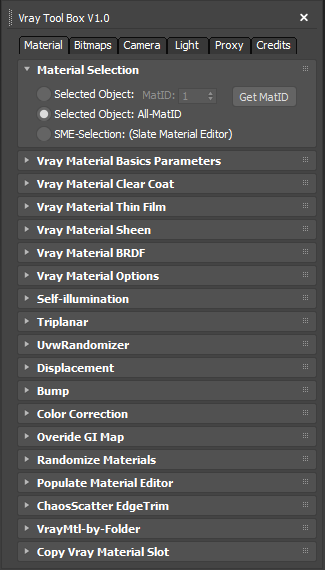
It is a Vray version of my script "Corona Automator" It has a lot of features for materials, bitmaps ,cameras, lights and proxies.

Its main goal is to automate property tweaking, and save time on repetitive tasks.

for now the material part is focused on Vray Materials , it won't work on other kind of materials like fastSSS or other materials.

Get Materials (one click!)

4 votes

A very simple but EXTREMLY USEFUL script you will use all the time!

With just one click it opens the Slate Material Editor and displays all the materials for the selected objects well organized in a clean view.

Forget about the annoying material picker tool. Add this simple button to your toolbar and every time you want to see the material/s for your current selected object/s just click the button and... Voila!

It will save you a lot of time!

miauu's Slate Material Cloner

1 vote


miauu's Materials Reducer

2 votes

miauu's Manage Links

8 votes


Syndicate content