Tagged 'map'

Project Manager

597 votes

After a long stretch of development, Project Manager 4 is officially out — the biggest release in the product's history, and now with full 3ds Max 2027 support.
The headline is AI Asset Classification.
Your library gets sorted automatically — by object type, material, and style — no manual tagging.

Project Manager 4 — What's New Since v3

Changelog · 3ds Max 2016–2027

AI-Powered Asset Classification

  • Automatic categorisation of 3D models and textures by object type, material, form, and style — no manual tagging required
  • Runs entirely on your machine — no cloud, no subscription, your assets never leave your computer
  • GPU-accelerated background processing at low priority — won't interfere with rendering or active work
  • Reclassify specific folders or categories on demand — no need to reprocess the entire library
  • Scale across a team: multiple workstations share the same database and classify in parallel

Colour Tools

  • Find assets by colour — pick from a palette and instantly see matching models or textures
  • Perceptual colour similarity search — finds visually related assets, not just exact hex matches
  • Find Similar by Colour in the right-click menu for models and textures

Find Similar

  • Find similar by content — AI matches 3D models by style, shape, and visual look
  • Find similar by colour palette — matches assets to a reference image or mood board by dominant colour proportions

Smarter Search & Filtering

  • Multi-keyword search: "Chair, Glass" finds a file named Chair.max described as "glass"
  • Category filter correctly includes all subcategories — filtering Furniture also returns Furniture → Chairs → Dining
  • Combine category and material filters: find glass-and-metal tables, or wooden ones, in one click
  • Categorised / Uncategorised quick filters — see which assets still need attention

Gallery & 3D File Browsing

  • Three gallery tabs for .max files: Models, Materials, and External Links
  • Drag materials directly from the gallery into your open 3ds Max scene
  • 3D viewport preview for FBX, 3DS, OBJ, and other formats — inspect geometry before importing
  • Edit external links inline — fix or replace missing textures without opening the .max file
  • Zoom & Pan for images — inspect textures at full resolution inside Project Manager

Migration & Compatibility

  • v3 and v4 share the same database format — point v4 at your existing library and go; no rebuild required
  • Run v3 and v4 side by side on the same team; supported from 3ds Max 2016 through 2027

Performance & Other Fixes

  • Significantly improved overall performance — faster navigation, filtering, search, and file/folder operations
  • Live sync in shared database mode — changes by colleagues appear automatically without reloading
More about new features   Project Manager version 4
 

RTTassist

538 votes


About:

FilePathFinder Pro & Light versions

410 votes

Using the FilePathFinder you can be sure that you have complete control over external links into your scenes.

Asset tracking features include support for XREF files and easy linking with external files.

Using the FilePathFinder (and Batch Render&Relink), you can search for missing assets and relink external files.

In addition, files that are linked to selected objects are displayed in Interactive Mode, and bitmap textures can be toggled and placed within the Material Editor.

Also with this tool, you can easily make an archive a 3ds Max scene.

Note that FilePathFinder supports the highest number of asset types of any plug-in.
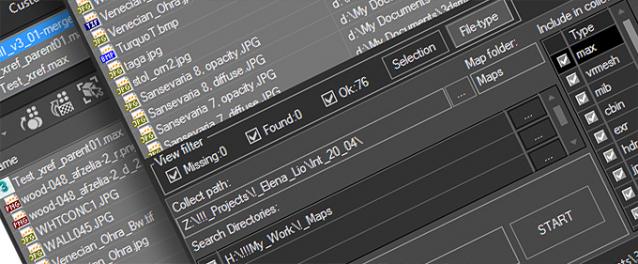
 

The Batch Render&Relink tool helps manage your asset files into the 3D model and material libraries in Batch Mode.

BR&R is capable of rendering thumbnails for 3D models, materials, and IES photometric files.

Batch Mode makes for an easy way to gather and compile many assets at once.


The new version of FilePathFinder is released with support to 3ds Max 2026

and many new features that improve managing scene assets

FilePathFinder Pro version 4.17.01

  • Adds support to 3Ds Max 2026
  • Play IFL, and animated GIFs directly in the list view
  • Play IFL and animated GIFs in the external Asset Viewer
  • Ability to change selected assets directly from the Asset Viewer using keyboard shortcuts
  • Adds an ability to include/exclude search directories by filename
  • More accurate material/texture placement in SME
  • Drops support to light theme
  • Fixes an issue with including/excluding search directories by filename
  • Fixes an issue with searching, relinking, collecting, and archiving the content of IFL files
  • Fixes an issue with relink assets in batch mode for Demo version [Batch Render&Relink]
  • Fixes an issue with renaming external scene links with status #Found
  • Fixes some issues with relink assets using exclude directories
  • Fixes a bug with relinking assets in huge scenes
  • Fixes a bug when using the tool together with Materials Manager and Models Manager
  • Some other optimizations, fixes and speed improvements

TexTools: Toolbox for the texture artist

237 votes

Documentation: http://www.renderhjs.net/textools/

ZOA Path Editor

39 votes

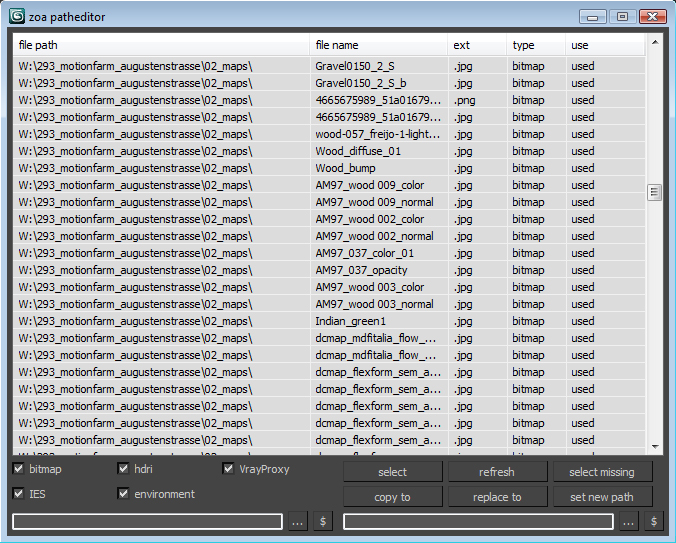
Simple Path relinker application for maps, ies, hdri corona proxy and vrayproxy objects. Features are: path text replacing and copy functions. The two text fields below each section are for "original" and for "future" paths. $ stand for string. Use it to copy a map path of a selected map to the desired text field.

User interface for the maps section. Others look the same.

Scene Material/Map Floater

38 votes

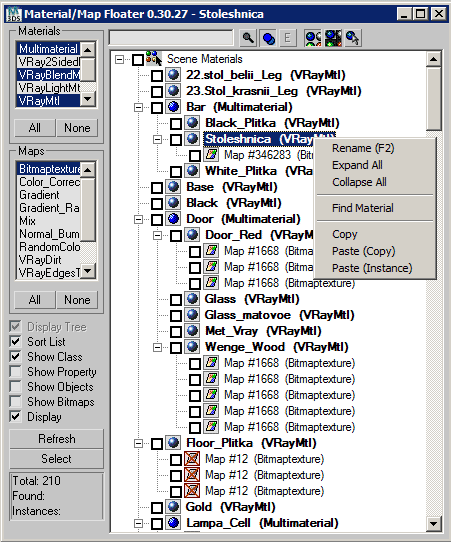
A Material/Map browser similar to the one found in max
- Able to FILTER Materials/Maps by class types

Relink Assets

38 votes

Hi this is my version of a tool for relinking (missing) bitmaps which can not be found for whatever reasons (changed paths, moved files etc.). It is pretty straightforward and works with almost any type of asset (maps, HDRIs, IES files) as long as it can be referenced and seen in the asset browser. Due to copyright restrictions I can not publish the code right now but I hope that it can help you anyways until max itself has a better management for assets.

Instructions

Transfer UV

34 votes

Helps you to transfer texture coordinates from one objects to another with identical topology. The feature of this script is that they can transfer UV`s from multiple objects and correct some errors arising with importing .obj files, like vertex reordering or removing mid-edge vertexes when you export objects to .obj.

Updated to version 1.2 - rewritten vertex order sync, must work much better!

Demo video: http://www.mikems.ru/files/videos/TransferUVsDemo_lq.avi

V-Ray Irradiance Map Pre Calc

27 votes

This is a script I created to automatically setup your Irradiance Map for V-Ray. Basically you select what camera you want to render from, select what frame range, the path where you want your Irradience Maps to Generate to and the information automatically goes into your Irradiance settings. It will even create the file for you.

This is useful for companies that send many animations via network rendering by saving time in setting up your irradiances.

If you have any questions please contact me at [email protected]

Updated -
Version 1.1

Map Loader

26 votes

1. Run script

2. In Max goto "Customize->Customize User Interface...->Toolbars
tab->Category: ColinScripts->Map Loader
" and drag "Map Loader" to a toolbar, click to run.


Loads maps into the material editor that exist in the scene.  Very straightforward. Support for special Mental Ray Maps and VRay Maps included.


Syndicate content