
Pivot & Align Tools
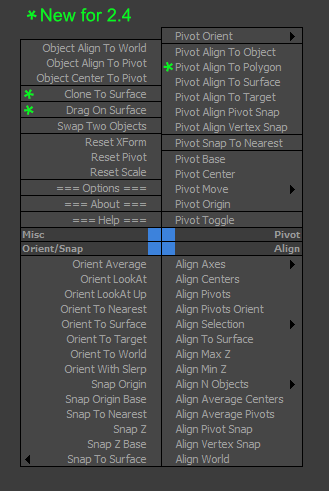
Pivot & Align Tools (PAT) are a set of macros bundled into a quad menu that allow you to perform various object alignment, pivot alignment and object snapping functions... among others. Most of the functions can operate on a selection of multiple objects at once, including grouped objects as part of the selection (open or closed).
NOTE: This script now handles quad setup for both 3dsmax 2025 and above, as well as previous versions of Max.
See online guide in links section.
The "LBTools - PAT Quad" menu can be found under the Quads tab in Customize. Assign hotkey to access it.
Latest Updates:
Version 2.5;
- Quad menu now works with 3dsmax version 2025 and above for the new menu system that replaced the old one. Previous versions are still supported.
Version 2.41;
- Fixed quad submenus from creating duplicates after each 3dsmax shutdown, due to not unregistering existing submenus before creating which caused config file bloat.
Version 2.4;
- Added "Pivot Align To Polygon" which aligns the selected object's pivot to the center of a single polygon selection and orients it to the surface normal.
- Added "Clone To Surface" which allows creating of new selected object instances onto a picked surface for each mouse click, with optional dragging via the options menu.
- Added "Drag On Surface" which allows a selection of objects to be tagged as draggable. It will use each of the selected object's negative local Z-axis to find any surface intersection point in the scene and continuously snap to its surface normal. The quad menu toggle will display a tick to indicate status.
The "LBTools - PAT Quad" menu can be found under the Quads tab in Customize. Assign hotkey to access it.
Installation:
Drag the MZP file into your Max viewport. A restart will be required to initialize the quad-menu.
Files will be copied to...
C:\Users\<userName>\AppData\Local\Autodesk\3dsMax\<maxVersion>\ENU\scripts\startup
| Attachment | Size |
|---|---|
| old_lbtools_pivotaligntools_2-41.mzp | 21.59 KB |
| lbtools_pivotaligntools.mzp | 26.75 KB |
Comments
can't install in max2021
It works when running as Administrator,thank you for your script
can't install in max2021
I drag it into 3ds max 2021 but nothing happend
Re: I have the same problem, I
I just figured it out.
I made a new menu with all the List options and assign a keyboard shortcut to it on Keyboard tab, now it's saving.
Re: I have the same problem, I
I formatted my PC and after installing 3ds max 2018 I just installed your plugin without any other plugins and the same error appeared, I even tried with Update 1, 2 and 4 but nothing.
I opened the file that you mentioned but there's only one entry for Quad and List I even used CTRL + F to search for it.
The funny thing through it was working without any problem before, now I don't know what's happening.
My problem isn't that it's showing duplicate menus but that it isn't saving the keyboard shortcut.
Sorry for any mistakes on my english.
Re: I have the same problem, I
Hi, I'm not having any issues with my installation and I can't reproduce the problem. You might need to edit your auto-saved .mnux file in ... \AppData\Local\Autodesk\3dsMax\\ENU\en-US\UI\Workspaces\usersave\ ... for example, mine saves to ... Workspace1__usersave__.mnux.
In that file just remove any duplicate entries ...
<Context menuID="20" title="LBTools - PAT Quad - List" showAll="0" />
<Context menuID="21" title="LBTools - PAT Quad - 4x4" showAll="0" />
<Context menuID="22" title="LBTools - PAT Quad - List" showAll="0" />
<Context menuID="23" title="LBTools - PAT Quad - 4x4" showAll="0" />
... and also update the menuID's so they're sequential again.
That should fix it from then on.
Lorne Brooks
I have the same problem, I
I have the same problem, I assigned a hotkey but it doesn't save
and now I have 6 menus in my list.
You can find out the reason,
You can find out the reason, the script constantly creates a new menu of itself.
thank you too much
thank you too much for your great effort
i try to create a new quad and move the script to it (working good)
thank you again
Re: have same problem quadmenu not appear (show all quads)
Hi, sorry I misunderstood the original problem.
I had a play with trying to get this working and had some success in 2016, but not 2019. It seems Max's interface doesn't always play nice with this option when assigned to a shortcut. To get it working (in 2016), I saved both my custom workspace and Custom UI Scheme after assigning the shortcut and turning on show all quads, and restarted Max.
I've removed some lines of code (in 1.3) that may have prevented the show all quads from working as expected. However, to get it working you may need to start from a fresh default workspace then install the script and try setting up a new custom UI.
Lorne Brooks
have same problem quadmenu not appear (show all quads)
thaaaaaaank you too much for improvement but please can you fix quad menu issue
my problem is quadmenu (show all quads)option not working