Tagged 'script'

Animation Trajectory Volume

3 votes

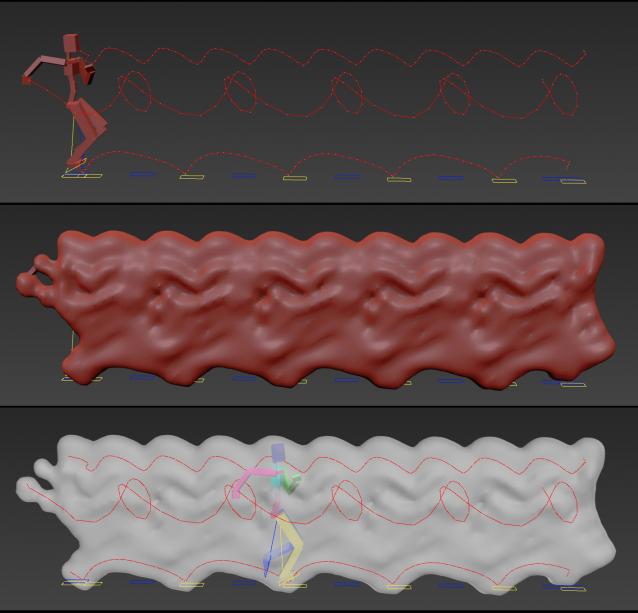
This script helps you create an aproximate mesh that covers the animated object (transforming or deforming) through the animation range.

It can come in handy:

-When trying to build an environment around your animatedcharacter for example.

-or to see how your animation flows instead of using the normal line trajectory.

-also to know the dimention that our charachter are moving in to build FumeFX container or other fx stuff.

It's based on Blob mesh so:

Rattle 1.0 - Parametric Noise Generator... Released!!!

2 votes

Rattle 1.0 is a script for Autodesk 3ds Max to manage noise in different ways in your scene and animations.
With Rattle you can use the noise on animation controllers in very easy way and in single and multi selection. You can use also the noise deformers to give noise to your meshes and create variation in your scene and animation.

Features:
- Relative Noise Controllers (so you can have it as additive controller to your animation )
- Noise Position Controller
- Noise Rotation Controller
- Noise Scale Controller
- Noise Deformer
- Noise Bend Deformer
- Noise Twist Deformer

Normalize Render Elements

3 votes

---- Description:
---- Normalize file Path of render elements.
---- Change all or selected render elements extensions to unique extension, and extension can be diferent that file name OutPutPath render.
---- Set a diferent path to render elements and output render.
---- 1.1
-----Fix little Bug in update name output file with name output elements

Rock Maker v2.5 & Rock My World v1.6!

109 votes

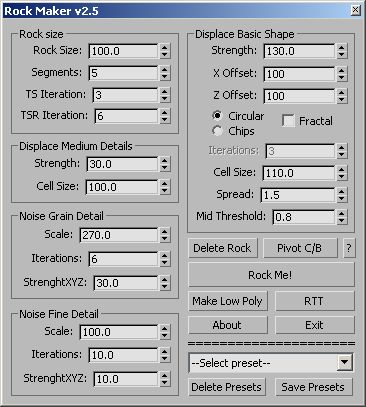
This is a script I wrote while learning Maxscript.

--------------------------------------------------------------------------------------------

Create a high poly Rock and adjust to suit your needs

Click Make Low Poly and you'll get a low poly rock based on the high

poly rock that is unwrapped ready for Render to Texture.

You can save your shapes to presets and adjust the pivot with one click.

The original and the best: :)

Load Multiple Bips

0 votes

I created this script to speed up my daily work with crowd animation. If you have a lot of character studios rigged bipeds and need to load the same animation (walk loops, conversation...) on all of then, so this script might help you.

It's a .mzp file that you can just drag and drop into 3ds Max or run through the MAXscript menu. After that you will find the script at: Customize > Customize User Interface > Toolbars tab > Category: MMScripts > Load Multiples Bips".

To use the script you just need to:

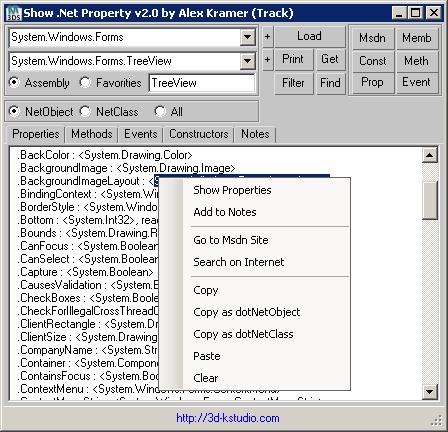
Show DotNet Properties

45 votes

Scriptbag

4 votes

DESCRIPTION

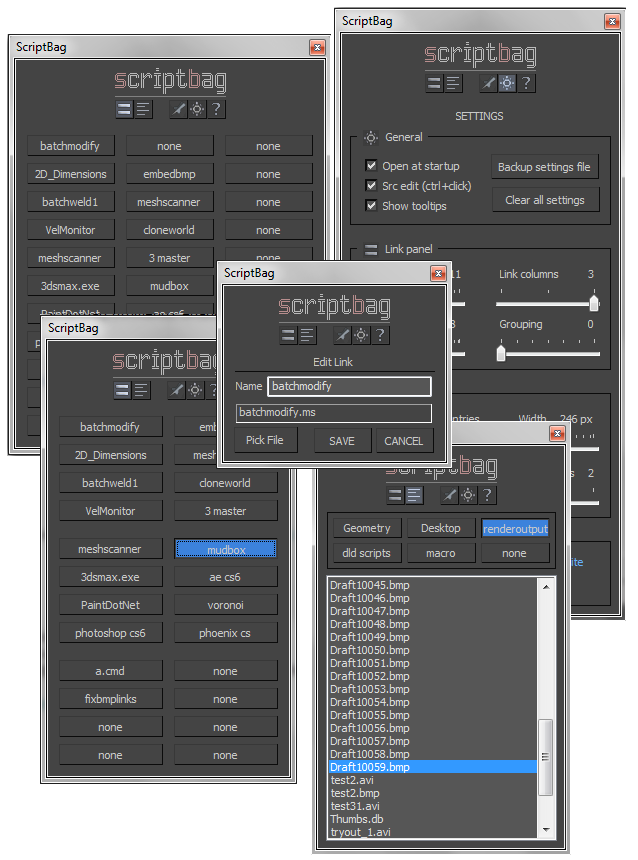
Scriptbag is a configurable quicklink tool serving as a faster and more convenient alternative to Max's cumbersome user panel/toolbar system.


KEY FEATURES

- Link panel: up to 60 configurable link buttons
- List panel: up to 9 per-folder link file listings
- Adjustable button / window sizes
- All settings and link data are saved .db file
- Run scripts, open files with lmb
- Edit links and link names with rmb
- Hold control key to open scripts in editor
- Run at Max startup option

EmbedBMP

4 votes

GENERAL INFO

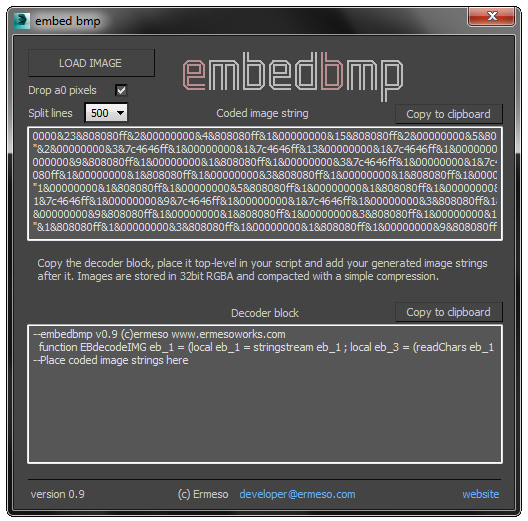
EmbedBMP is a scripting utility that translates bitmap data from an image file to string data, which can be added to Maxscript source and loaded as bitmaps by the provided decoder function block.

Some basic compression is applied to decrease the data size. The embedbmp logo for instance is imbedded as a 5kb string, from a 44kb bitmap. The maximum practical image size strongly depends on the compressibility and omittability of the image content.

Change Render Engines

4 votes

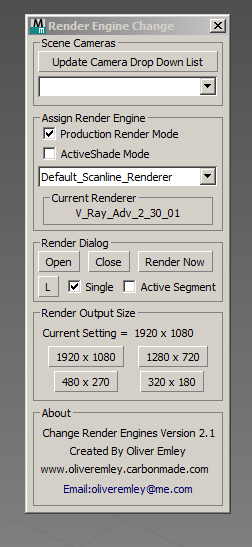
Change Render Enging ScreenshotV2.1 

Change Render Engines V2.1

The script allows you to do the following:

 - Select any cameras that are in the scene and automatically switch to that view

 - Update the camera list at the touch of a button

 - Assign Production or ActiveShade rendering mode

 - Assign a Render Engine to the Render mode that you are in

Stairs Extruder

0 votes

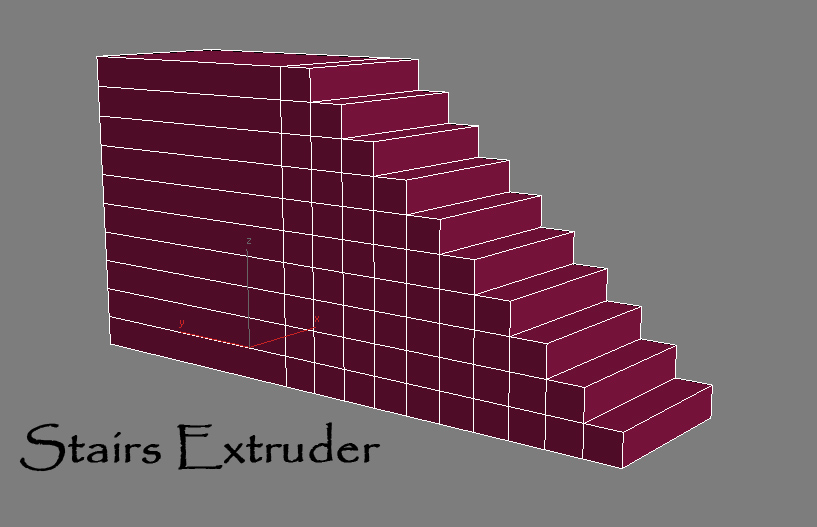
Simple Script that do incremental face extrusion (useful to create stairs for example)

# Installation:

1-extract files

2-copy Stair Extruder.mse to 3dsmax\script folder

3-copy StairExtruderMacro.ms to 3dsmax\script\startup folder

4-restart 3ds max or run StairExtruderMacro.ms from script menu run.

5-add it to ur desired UI (menu,quad,toolbar...)

Syndicate content