3ds Max | Scripts

RenderingTime

1 vote

image Render Time

This script allows:

-Convert hours, minutes, secondes
-Estimate how much rendering time
-Estimate how many machines to render
-With icon for shortcut

installed in:
$usericons\
$userScripts\JeremyA

GQuadSphere

3 votes


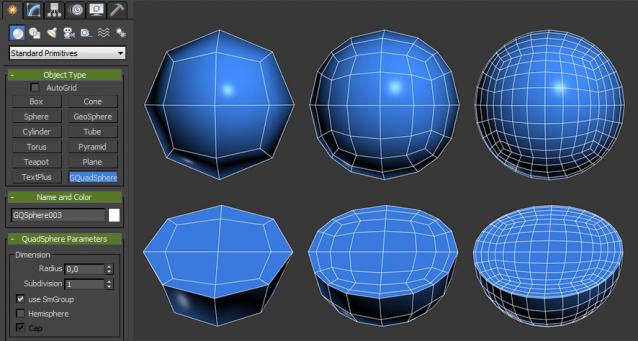
GQuadSphere script will add Quadsphere to your tools (Create-Standard Primitives-GQuadSphere)

This script allows creating correct sphere with quad topology unlike using turbosmooth over a box.

When creating quadsphere you can set up radius, Subdivision (max 3).

Also you can create hemispheres (capped and open)

Installation: copy GQsphere.ms to your script startup directory or to
C:\Program Files\Autodesk\3ds Max 2016\scripts\Startup\

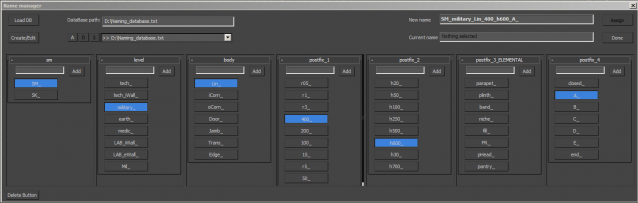
Name Manager

2 votes

PowerSwitcher : Enanced Viewport Switching (Release)

8 votes

 Summary:

PowerSwitcher switches viewports while remembering previous viewport's position/pan and zoom data. No more panning/zooming after switching through the various different viewports, as PowerSwitcher stores and recalls all that info for you. Comes with addional features like, cycling views through scene cameras/light views per keypress etc.

Features new in Release Version 1.0:

Batch Detach Selected Polygons

1 vote

This script will help the user to detach a large number of polygons into individual objects in one click.

The script will be available if one object only is selected, and this Object has to be from the geometry family.

Note: The script doesn't work on Editable Patch objects

DenoiseManager

0 votes

Description:

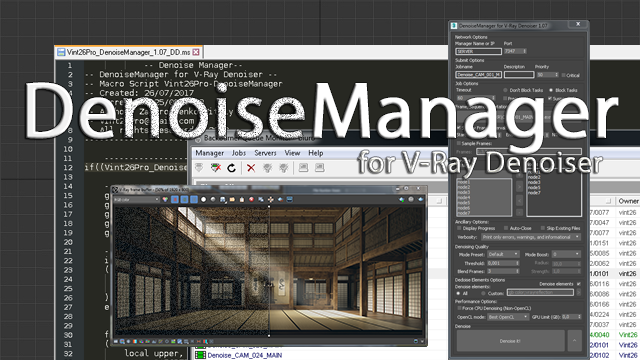
This script is designed to quickly and easily accelerate and distribute denoising jobs on your renderfarm.

DenoiseManager

Playback Tools

6 votes

This script offers easy to access tools for controlling animation time and playback, as well as the ability to save a few ranges to jump to.

It is a highly modified version of Jim Jagger's original Playback Tools and uses his icons.


Features:

- Player controls

- Playback speed controls

- UI hide toggle

- Time scrubber

- Compact and wider time scrubber mode (accessed via the thin bar below the small time scrubber)

- A separate rollout for storing up to four named time ranges


deleted

-1 vote

RAL to RGB Converter (+Hex)

0 votes

--RAL to RGB Converter--

Little tool for quick converting your RAL color to RGB and/or hexidecimal values.

--Installation--

Put the RALtoRGB folder in your .\scripts\Startup\ folder and restart 3dsmax.

In most cases this will be something like this:

C:\Program Files\Autodesk\3ds Max 20xx\scripts\Startup\

where 20xx is your 3ds max version.

Find the category named RALtoRGB in your Customize User Interface Dialog and then drag it on toolbar or assign a shortkey to it.

==Usage--

In the UI of the script fill in your 4 digit RAL code in the RAL field and click CONVERT.
Detach faces V2

10 votes

with this script, you can detach all the faces of selected objects as separate objects.
with pivot aligned to their center.
You also can detach only selected faces, with pivot and parent options.
You can detach faces from edges selection, if you check align pivot, it will align pivot to the center of each edge.
You can align pivots or parent after, on objects selection.

Syndicate content