3ds Max | Scripts

eX Box

1 vote

The ex Box is a small toolwindow that contains some basic tools for working in ExpertMode.

Tools:
- Select - Move - Rotate - Scale
- World / Local / Parent Coordsys
- Show Category - Hide / Unhide / Freeze / Unfreeze
- Animate and animation playback tools
- Shift-Click the Move / Rotate / Scale buttons to create keys

Expand Selection

5 votes

Lets you expand and synchronize both Vertex and Face selection in EditableMesh - MeshSelect and EditMesh. Selected vertices cause faces containing them to become selected - and vice-versa. Vertex selection causes the same selection to be transfered to Face

Expand selection to ...

5 votes

There are three macro scripts here.

  • To UVShell - convert your selection to UV Islands;
  • To Planar - expand your selection to planar (faces with difference in normal of 5 degrees angle);
  • To SMGroup - select nearest faces which have at least one similar smoothing group.

Installation:

Expanded Object Colors

1 vote

This free script will give you some extra options for wire colors of new objects. You can set it to use default max, use current active layer color, set a specific color, set a range of colors and set value stepping.

To Install, just place the file in the Scripts/Startup folder.

To change settings, run this Macroscript:

macros.run "wallworm.com" "WallWormLaunchColorManager"

You can create a button/menu to launch the settings floater via Customize > Customize User Interface and finding the function "Launch Color Manager" in the "wallworm.com" category.

Expand_Wrap.ms

2 votes

"This script will expand one mesh to the surface of another mesh or meshes. This can help making a lowpoly collision object for a character. First a snapshot of the selected object is created. The original object is put into box mode (so it is easier to see the result). Snapshots are created of the selected target object(s).

Expert Mode with Command Panel

8 votes

This is just small script - similar to Expert Mode (shortcut "Ctrl+X") but it keeps Command Panel visible

You can used as shortcut or toolbar button

ExpertMode Modifiers Control

9 votes

This little tool will allow you to control modifiers of selected object without accessing the command panel especially when it's active Expert Mode. Tooltip on the image below shows list of actions.

ExpertModeControls

6 votes

Moves common animation controls into a floater and stores all selection sets in a fast and convenient listbox.

Explode Baker

2 votes

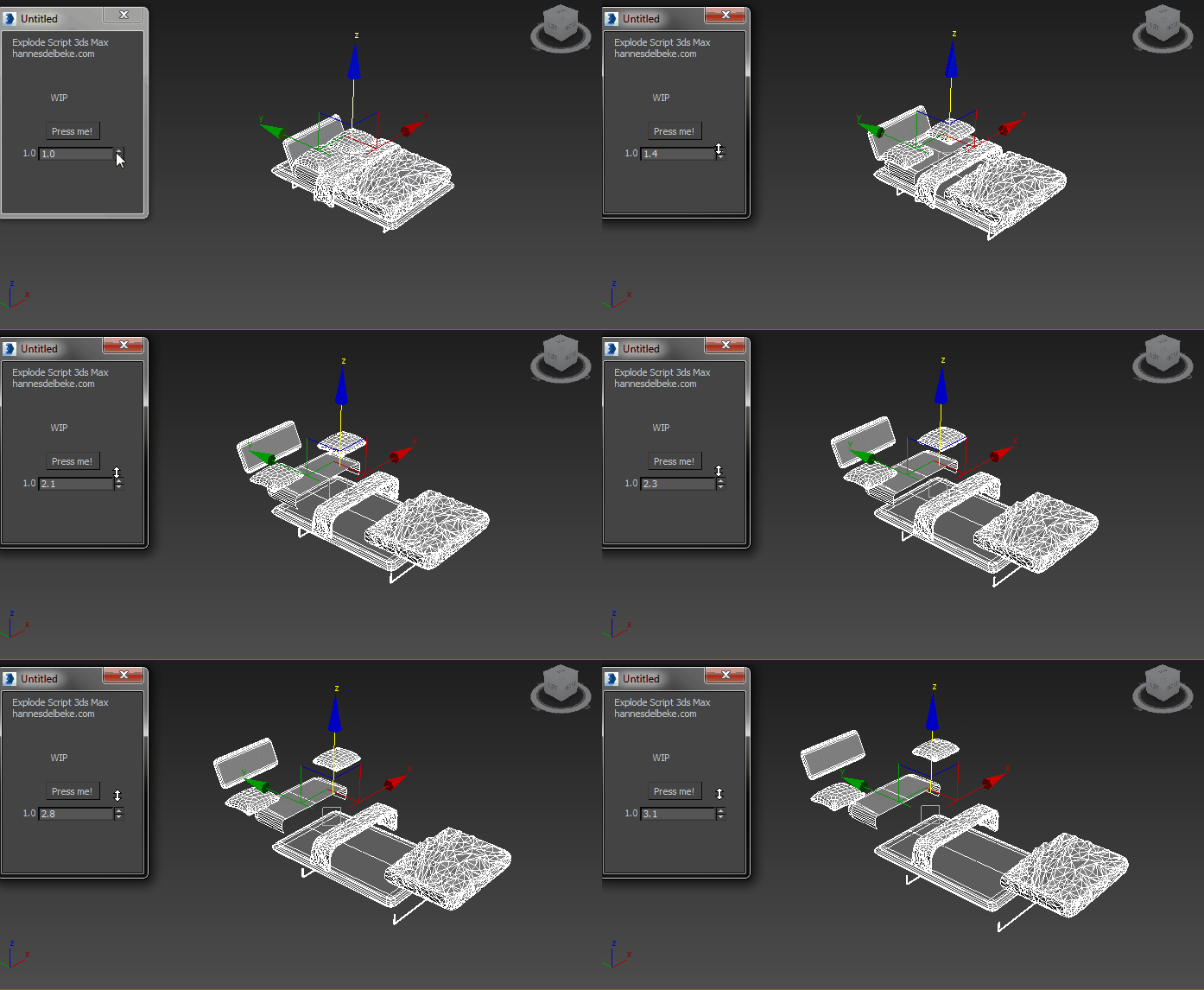
will explode your meshes based on their names


step 1) set up the suffixes and name your meshes

supports custom tags such as _LP or _lowpoly
_HP and _highpoly

please make sure all objects are named correctly
floaters can be attached as a child to their highpoly parent and they will auto move along with the parent during the explode

step 2) click create projection

Explode face in Object

1 vote

Another script to explode the faces of a mesh into individual polygon.

Syndicate content