Youtube - Usage Video
Credits:
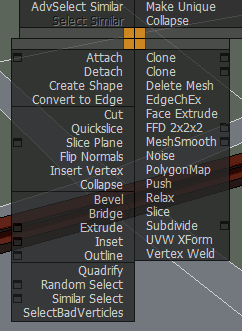
* This script was largely inspired by Houdini's intuitive TAB Menu.
* Thanks to Jordan Walsh for the bit regarding .classes!
* Thanks to Daniel Santana (4+Arquitectos, Lda) for the User Commands/Object Parameters/Script Execution ideas!
* Thanks to Sergo Pogosyan for the History List idea!
* Thanks to Martin Breidt for the max commands ini file! (Download his activtypeCommands.ini below)
* Thanks to Arnon Marcus for the bit about adding "Locals"
Notes:
- Run the script file, it will create commands inside your "Customize User Interface" dialog called ActiveType and ActiveType Preferences under the category Terabyte.
- When running the script for the first time, the preferences window will pop-up. Here are the options:
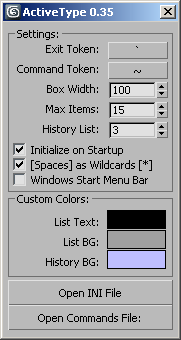
- Exit Token: If you type this text on ActiveType, it will exit the script. It is recommendable that you use the same character/text for your shortcut and your Exit Token.
- Command Token: This key will invoke the Custom Commands list. (0.35)
- Box Width: The width of the ActiveType box.
- Max Items: The maximum number of items that will be displayed.
- History List: The maximum number of items that can be displayed in the history list. (0.32)
- Initialize on Startup: This will create a startup script on your scripts\startup folder. Whenever 3dsmax starts, it will run activeType invisibly to pre-compile the dotNet classes being used, essentialy speeding up loading on first-run. (0.35)
- Spaces as Wildcards: Will convert blank spaces (pressing the spacebar) into wildcards (*).
- Windows Start Menu Bar: If you have the start menu always visible, check this option to offset the ui size overflow. (0.30)
- Custom Colors: Set the colors for the pop-up UI.
- Open INI File: Opens the activeType.ini file found in your PlugCfg folder. (0.29)
- Open Commands File: Opens the activeTypeCommands.ini file found in your PlugCfg folder. (0.29)
- This script is intended to be assigned as a short-cut using non-alphabetic characters. (Right now, it won't work inside the quad menu)
- This will also save counters for each class that you select on the list, enabling the script to populate the list with the most commonly used classes first.
- The script is using some dotNet controls, so it might lag the first time you run it. (Enable 'Initialize on Startup' to alleviate this)
- This can also display a History List of previously selected items whenever invoking activeType. (0.31~0.32)
- To exit activeType, do one of the following:
- Press Enter (will execute highlighted item).
- Click on an item in the list (will execute the picked item).
- Type in the "Exit Text".
- Click anywhere outside the input box.
- Press the ESC button.
0.35 New Features
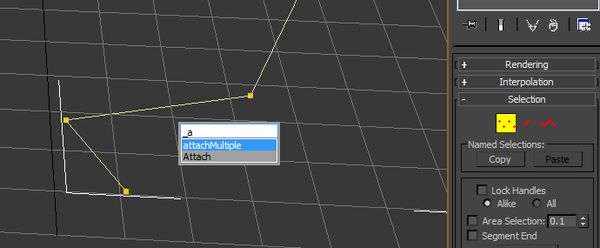
- Limited Edit\Editable Mesh / Poly / Spline / Patch Support
- To invoke the feature, simply be in sub-object mode.
- The script will work on both Editable and Modifier flavors.
- Edit Poly in particular, is slightly different. The names will have suffixes for Commands, Buttons, and Pick Buttons.
- Sadly, Edit\Editable Poly sometimes are unable to execute a command, thus the 'Limited' tag. (You may look at the listener for reports of unexecuted commands)
- Some of the commands are unfiltered. A command for a sub-object polygon may appear on a vertex sub-object list.
- This feature does not trigger if you are editing two or more objects. (no yet)
- The option "Spaces as wildcards" greatly helps to quickly narrow down your list:
- e.g. On a sub-object Edit_Poly, you may type "t" followed by space (whicih is automatically converted to "*", then type "w" to quickly narrow the list to "TargetWeld"
- Customizable key for invoking the Custom Commands.
- Now defaults to the "~" (tilde). Old hotkey was "#".
- I've also added a Custom Commands INI file on th elinks below.
- It's a long list of Max Commands courtesy of by Martin Breidt. Simple copy it to your \AppData\Local\Autodesk\3dsMax\2013 - 64bit\ENU\en-US\plugcfg folder.
0.33 & 0.34 New Features
- Limited Slate Support (for max2013 only)
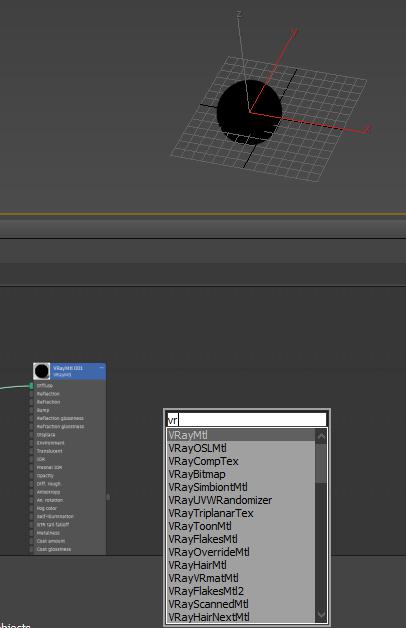
- You can only create nodes inside the Slate Material Editor if:
- The Slate Window is open.
- There is a selection inside the Graph View
*** Just remember to unselect a node inside the Slate if your list is still showing maps and materials ***
- The created nodes will appear at an offset to the Left of the selected node, and will be selected.
- Lists will be filtered depending on the current active renderer.
- Note that you may see un-creatable Material/Maps on the list. 3dsMax may have automatic safegaurds preventing those to be created via Maxscript.
- Pre-Load on Start-up
- There is now an option called 'Initialize on Startup' to pre-load activeType in order to defer the lag (caused by DotNet) whenever launching the script for the first time.
- The input textbox is now displayed with a cursor and a selectable text.
0.32 New Features:
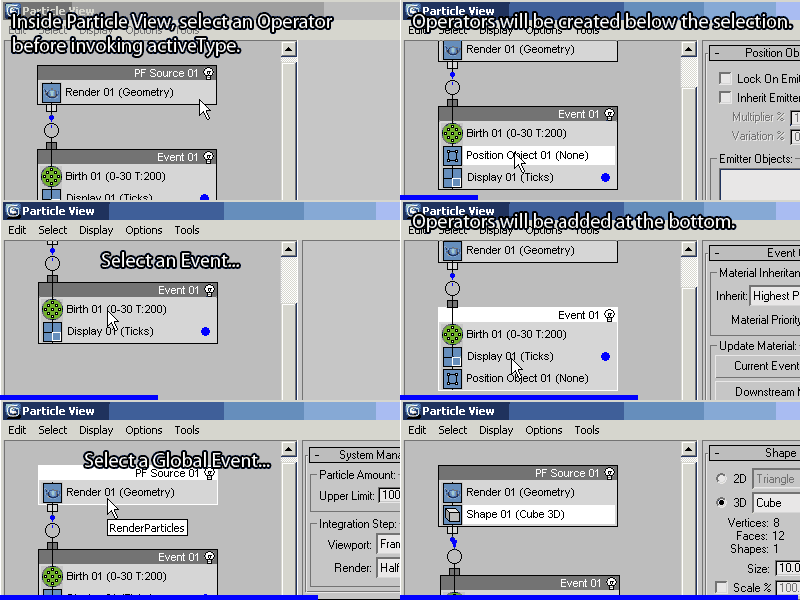
- Limited PFlow Support
- You can only create Operators when you have an Operator/Event selected inside Particle View.
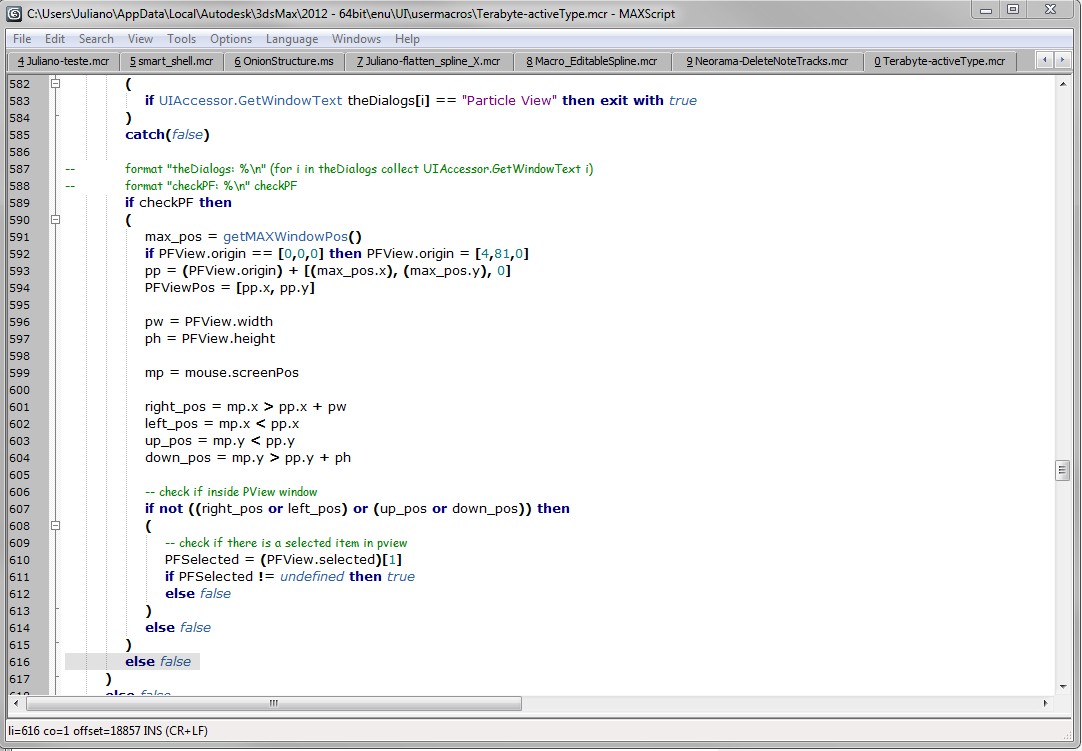
- ActiveType will switch to PFlow mode only if it detects that the Particle View is the current active window, your mouse cursor is inside the Particle View work area AND you have an operator/event selected.
0.31 New Features:
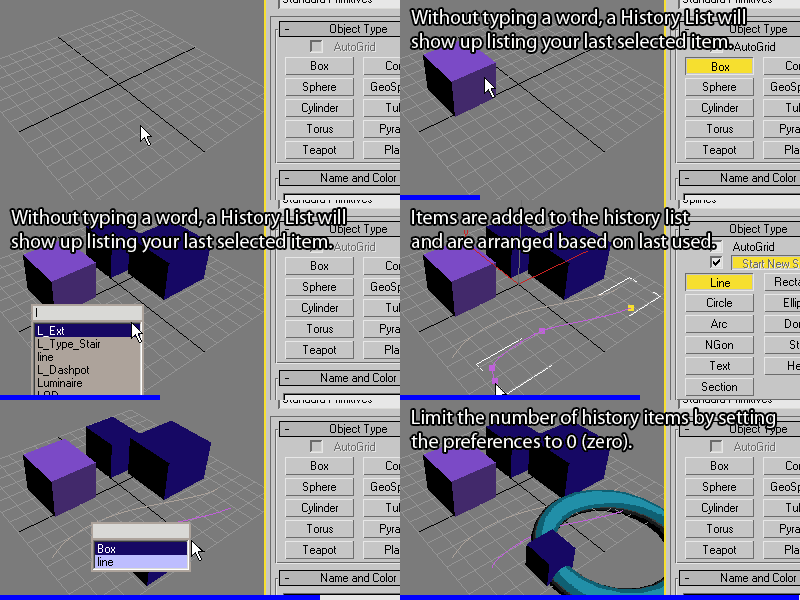
History List:
- A list of previously used geometries/modifiers/operators can be visible whenever invoking activeType.
- You may disable the history list by setting the count to 0 (zero) from the preferences dialog.
0.30 New Features:
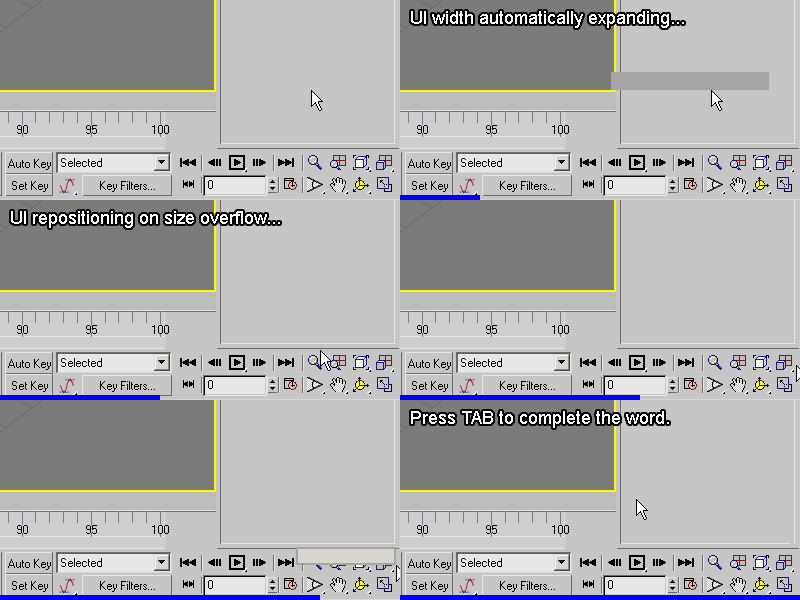
- The UI will now automatically expand based on the text width, and list height.
- The UI will also reposition itself whenever it detects that the size will overflow off the screen.
0.29 New Features:

- User Commands
- To enter user commands, type "#" as the first character. --> Changed to "~" (tilde) by default on version 0.35
- To add more commands, edit the activeTypeCommands.ini found in the plugcfg folder.
- Object Parameters
- To list the parameters for the active modifier in the stack, type "." as the first character.
- You can then press the TAB or ENTER key to complete the text. (You can also click the item)
- Supported parameter classes are Integers, Floats, Strings, & Booleans.
- Script Execution
- To execute a one-liner script, type "=" as the first character.
History:
[0.36]
2015-06-11
- fixed command mode not working
- found part of the cause of the slowdown whenever querying modifiers:
- removed spacewarp mods query, it was causing the slowdown
- the speed at which activetype will query modifiers will be the same as the speed at which
the modifier dropdown on the command panel appears.
- i may have to build my own modifier cache to query from to speed things up a bit more.
- added "local" to variables to avoid liekly errors against other scipts (Thanks to Arnon Marcus)
- disabled subobject mode as this changed the way activeType initially worked
- will update this to use capitalization in order to invoke sub-object mode.
- disbaled pflow and slate modes (I will need to look for better methods on detecting the dialogs)
[0.35]
2013-03-17
- fixed alt-press on opening ini files for win7
- disabled custom color checkbox - it was kinda redundant to have the switch
- added (limited) support for subobject mesh/poly/spline/patch modeling
2013-03-19
- updatead the Preferences UI and some functionalities
- added customizable Custom commands token string
- reworked the pre-load feature
[0.34]
2012-10-03
- added startup pre-loading
- restructured some code
- modified textbox to have selectable text
2012-10-04
- added (limited) support for the Slate Material Editor for max2013
[0.33]
2012-07-10
- improved Custom Commands listing (as requested by Martin Breidt)
- upon opening the activeType Preferences, it will auto-create a sample Commands File if it doesnt exist
- under the activeType Preferences, pressing [ALT]+[Open INI/Commands files] will open windows explorer to show the file and is selected.
2012-08-11
- fixed Pflow Dialog Detection using a much simpler method
[0.32d]
2011-12-06
- fixed PFlow Dialog Detection checking error
[0.32c]
2011-12-05
- fixed History List not initialized properly
- fixed PFlow Dialog Detection at index 1-3
- fixed blank "Exit Text" quick exit
[0.32b]
2011-11-30
- fixed Pflow creating ghost operators
- fixed "Color Hisroty BG" typo for INI file
- fixed history list - valid modifiers filtering
[0.32]
20011-11-29
- added clean-up for pflow creating unnecessary Display Ops [2012]
2011-11-26~27
- reintegrated/simplified the pflow functionality
- added max2009 check for UIAccessor
2011-09-06
- initial tests for pflow support
- added PFlow support (pfview check and creation methods)
- added classPFExemptions
- added krakatoaClasses
[0.31]
2011-11-25~26
- added class history list
- internally renamed some variables
[0.30]
2010-01-27
- added auto extend width
- added offset UI on screen edge overflow
- added "windows menu bar" checkbox to control overflow at the bottom
[0.29b]
2010-01-27
- fixed max2010 on japanese win vista list height
- added preferences as a built in command
- fixed TAB error if no text entered
2010-01-26
- fixed TAB key error
[0.29]
2010-01-25
- code clean-up
- fixed parameter list will now work on multiple base objects
- added open INI file button
- added open Commands INI file button
- separate INI file for the commands list
- added enter key on parameter list to complete
- added parameter and command counters/ranking
- added one line script execution using "="
- added ESC key to exit
- added click an item on the parameters list to complete
[0.28]
2009-12
Daniel Santana added a couple of neat features:
- added support for user commands using "#"
- added support for object properties (integer, float, bool and string) using "."
- added tab key on parameter list to complete
[0.27b]
- fixed error with japanese characters inside the script
[0.27]
2009-11-04
- fixed error on max9 with spaces as wildcards on
- I was using the function substituteString which isn't available in max9
- another fix for the dynamic UI height
- fixed for English/Japanese OS inconsistency
- adjusted width of the list for cosmetic reasons
[0.26]
2009-09-13
- fixed dynamic UI width/height
- max 2010 was showing inconsistent list height
- custom colors checkbox
[0.25]
2009-09-11
- disabled mouse checking within the UI
- fixed small UI size discrepancy
2009-09-10
- added custom colors
- added max items
- added spaces as wildcards
[0.24]
2009-08-14
- UI - colors
- UI - max height
- UI - spaces as wildcards
2009-08-12
- added spacewarp modifiers
- fixed preferences bug
[0.23]
2009-08-11
- a quick fix to exit activeType if it looses focus.
- added notes on how to exit the script.
[0.22]
2009-08-10
- removed internal timer
- added preferences
[0.21]
2009-08-10
- converted listbox to dotnet
[0.20]
- added all creatable classes
- switched editText to dotNet for up/down keypress detection
- added up/down keypress
- fixed listbox height calculation
[0.10]
- initial build
 By Jeff Lim · 2009-08-10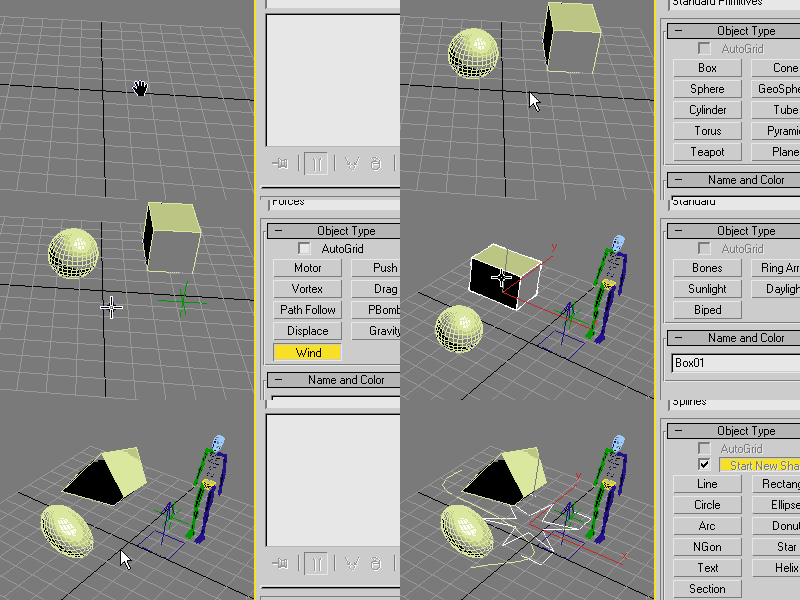
 marthgun · 2020-05-27
 vikirecon · 2017-09-08
 miauu · 2016-05-10
 Royal Ghost · 2016-04-06
 harumscarum · 2015-09-13
 3dhippie · 2013-08-21
 jsrocha · 2013-11-18
 bannor9 · 2014-06-24
 asymptote · 2013-04-07
 barigazy · 2013-04-05

 Martin Breidt · 2012-07-05
 jos · 2012-06-01
 SaiLing · 2011-12-06
 JohnnyRandom · 2011-11-30
 W DIGITAL · 2011-03-18
 mustafa mamdouh · 2011-02-16
 Jordan Walsh · 2010-09-23
 MarTroYx · 2010-01-30
 tomrider75 · 2010-01-27
 dgsantana · 2010-01-25
 sinokgr · 2009-11-03


 frnkcrnk · 2009-08-28
 tassel · 2009-08-11