
Project Manager
Version:
4.00.00
Date Updated:
06/09/2026 After a long stretch of development, Project Manager 4 is officially out — the biggest release in the product's history, and now with full 3ds Max 2027 support.
The headline is AI Asset Classification.
Your library gets sorted automatically — by object type, material, and style — no manual tagging.
Project Manager 4 — What's New Since v3
Changelog · 3ds Max 2016–2027
AI-Powered Asset Classification
- Automatic categorisation of 3D models and textures by object type, material, form, and style — no manual tagging required
- Runs entirely on your machine — no cloud, no subscription, your assets never leave your computer
- GPU-accelerated background processing at low priority — won't interfere with rendering or active work
- Reclassify specific folders or categories on demand — no need to reprocess the entire library
- Scale across a team: multiple workstations share the same database and classify in parallel
Colour Tools
- Find assets by colour — pick from a palette and instantly see matching models or textures
- Perceptual colour similarity search — finds visually related assets, not just exact hex matches
- Find Similar by Colour in the right-click menu for models and textures
Find Similar
- Find similar by content — AI matches 3D models by style, shape, and visual look
- Find similar by colour palette — matches assets to a reference image or mood board by dominant colour proportions
Smarter Search & Filtering
- Multi-keyword search: "Chair, Glass" finds a file named Chair.max described as "glass"
- Category filter correctly includes all subcategories — filtering Furniture also returns Furniture → Chairs → Dining
- Combine category and material filters: find glass-and-metal tables, or wooden ones, in one click
- Categorised / Uncategorised quick filters — see which assets still need attention
Gallery & 3D File Browsing
- Three gallery tabs for .max files: Models, Materials, and External Links
- Drag materials directly from the gallery into your open 3ds Max scene
- 3D viewport preview for FBX, 3DS, OBJ, and other formats — inspect geometry before importing
- Edit external links inline — fix or replace missing textures without opening the .max file
- Zoom & Pan for images — inspect textures at full resolution inside Project Manager
Migration & Compatibility
- v3 and v4 share the same database format — point v4 at your existing library and go; no rebuild required
- Run v3 and v4 side by side on the same team; supported from 3ds Max 2016 through 2027
Performance & Other Fixes
- Significantly improved overall performance — faster navigation, filtering, search, and file/folder operations
- Live sync in shared database mode — changes by colleagues appear automatically without reloading
More about new features ⇒ Project Manager version 4
Update History for all versions.
Models 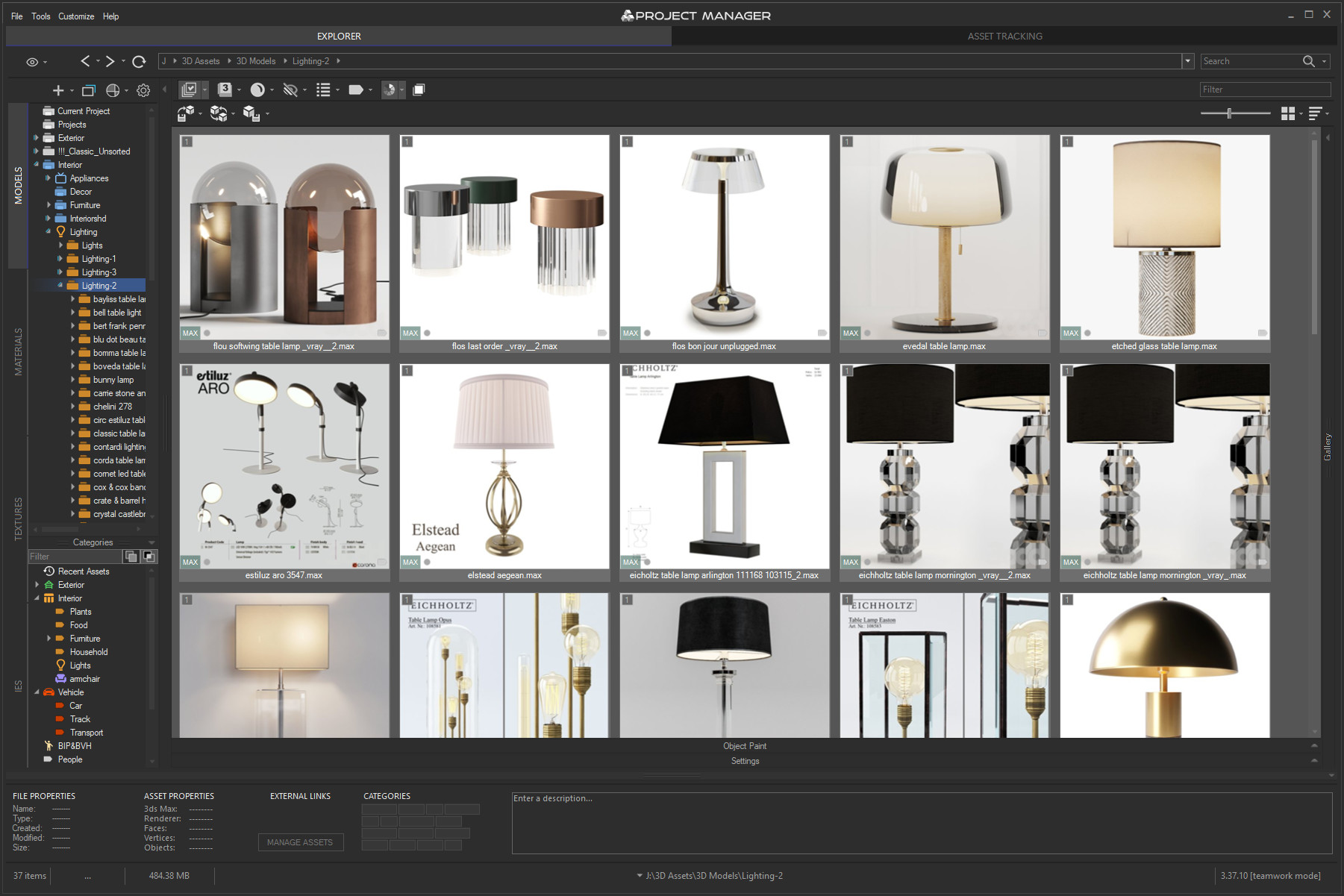 | Materials 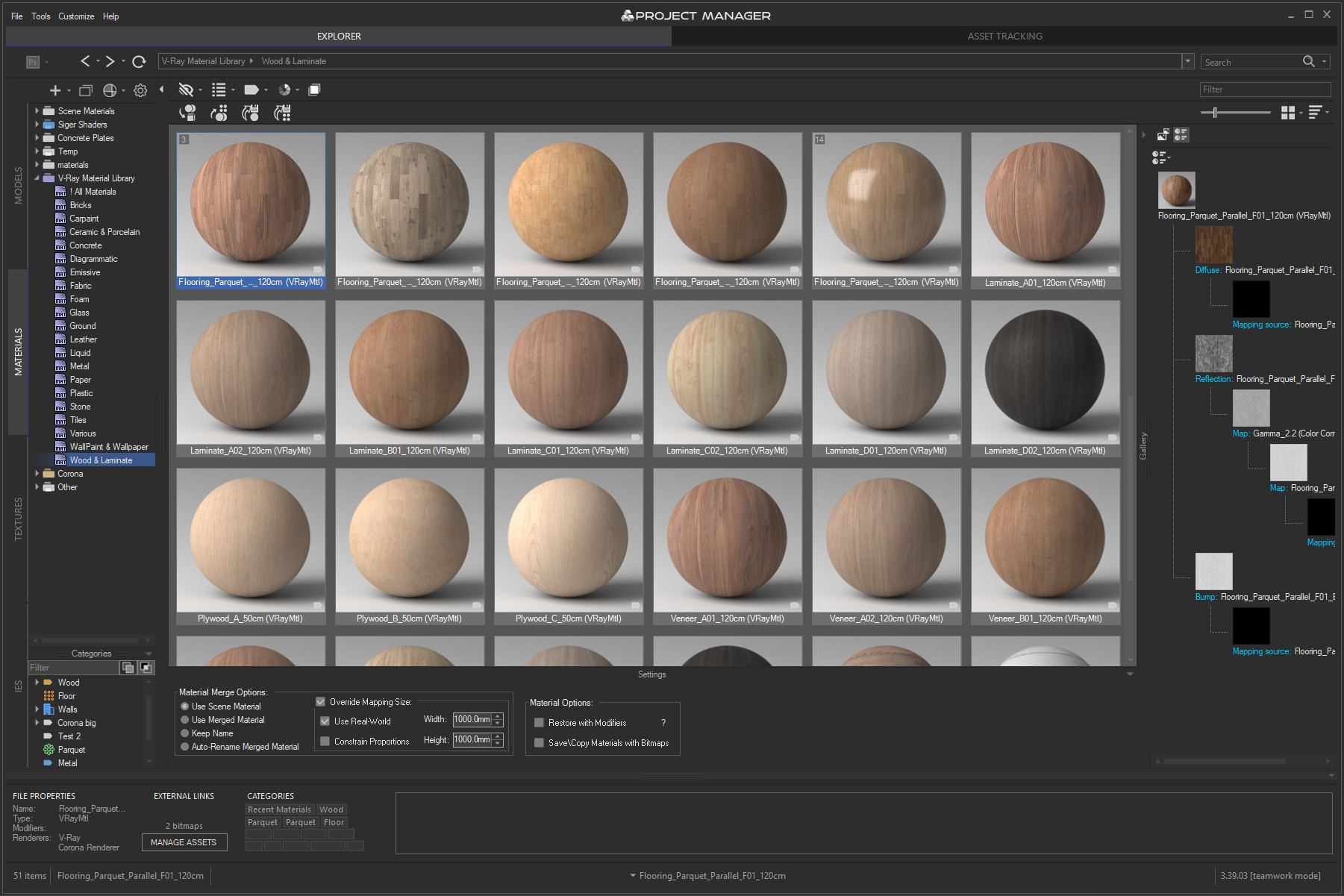 | |
Textures 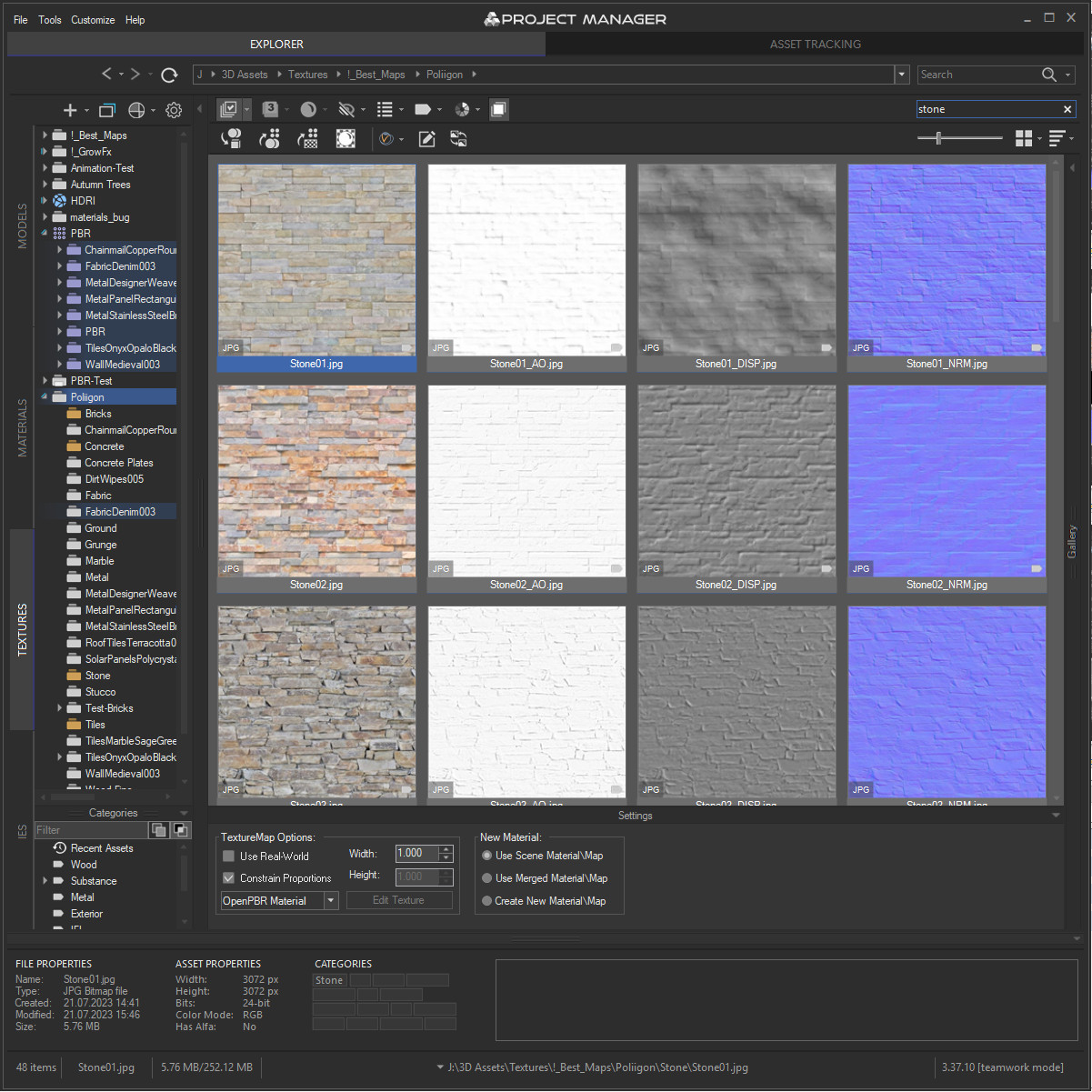 | IES 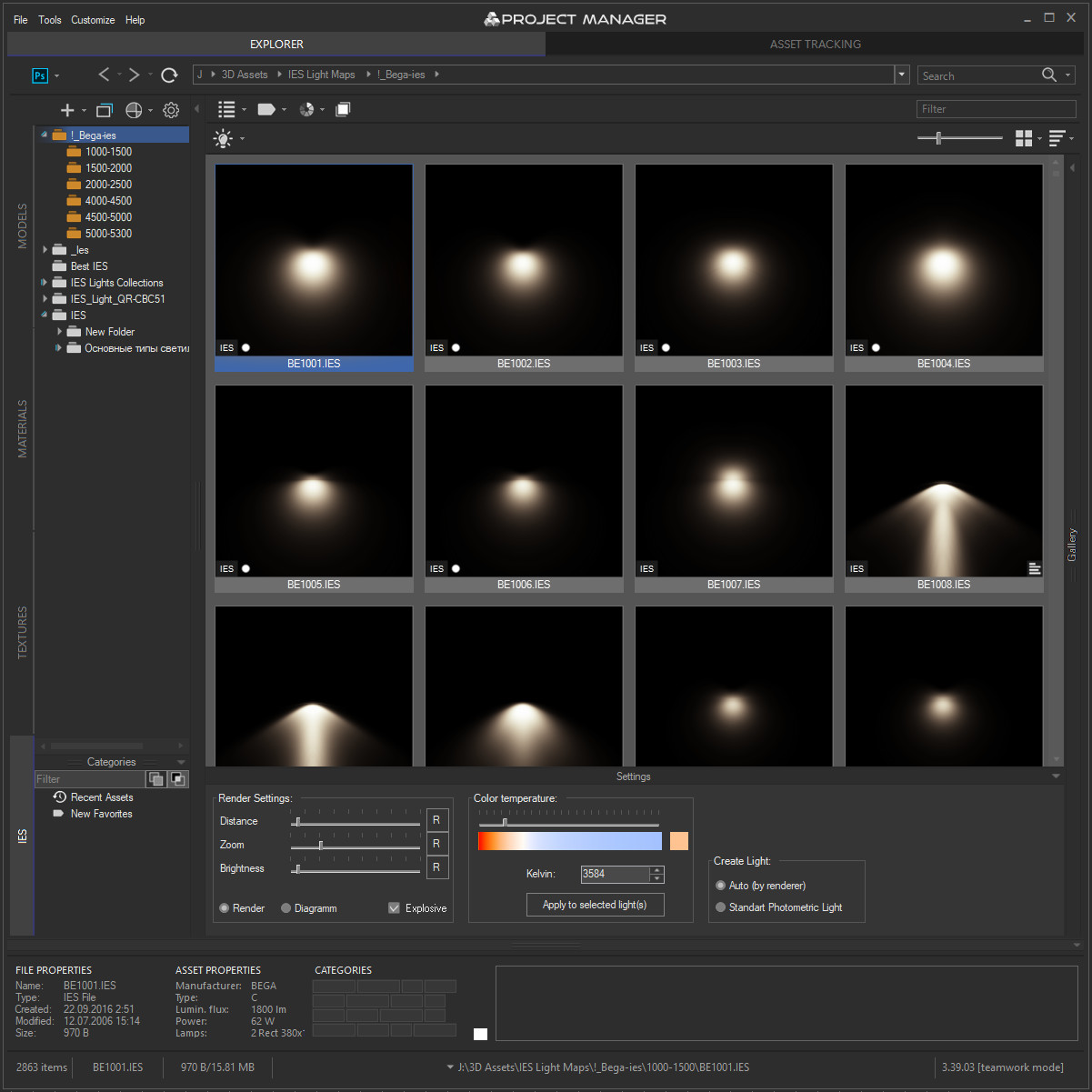 | Asset Files 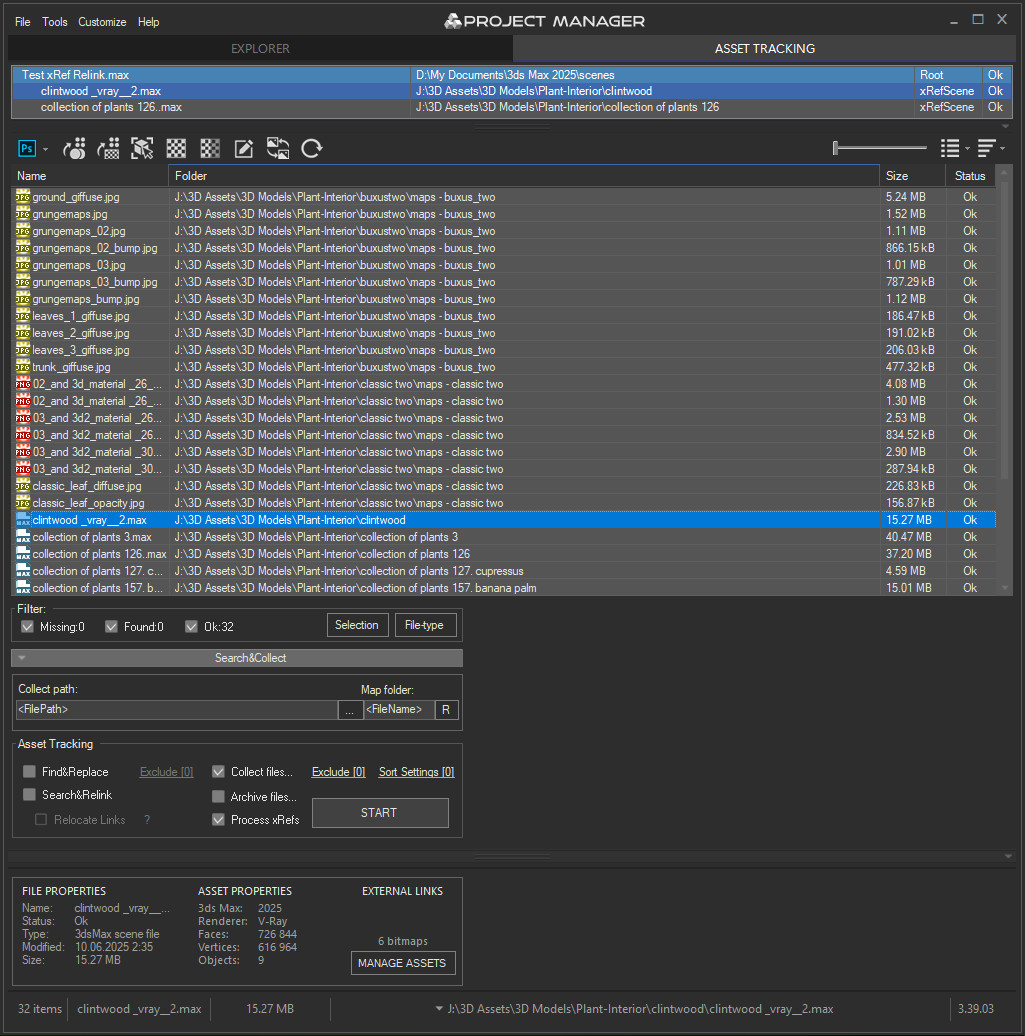 |
Quick Start Frequently Asked Questions
Main Features
- AI Asset Classification — automatically categorises 3D models and textures by object type, material, form, and style. Runs entirely on your machine, no cloud or subscription required.
- Find Similar — locate visually related models by style and shape, or match assets to a reference image by dominant colour palette. Powered by AI, available from the right-click menu.
- Colour Search — find models and textures by colour using perceptual similarity. Pick any colour from a palette and instantly see matching assets across your entire library.
- Colour Labels — tag assets with workflow statuses (Draft, Approved, In Review, Archived, Urgent) and filter by label. Ideal for team pipelines and asset QA.
- Easy to organise and browse 3ds Max Models, Materials, Textures, and IES Photometric Lights.
- Merge Models, Materials, Bitmaps, and IES using Drag & Drop.
- Three gallery tabs for .max files: Models, Materials, and External Links — drag materials directly into your open scene.
- Interactive rendering previews for Materials, IES Photometric, FBX, OBJ, 3DS, USD, BVH Motion Capture, and other 3D formats.
- Show native previews for 3ds Max files, ArchVision RPC, GrowFx, Revit, Substance, BIP Motion, SketchUp, HDRI, and more.
- Store and create Proxy objects with materials.
- Create PBR (Physically Based Rendering) materials and support for Substance textures.
- Smart search by tags, keywords, categories, colours, and labels — with OR / AND filtering modes and instant results.
- Asset Tracking Management — edit external links inline, fix missing textures without opening the source file.
- Team database support — multiple workstations share one library with live sync; AI classification runs in parallel across the team.
- Supports all major renderers: V-Ray, Corona, Octane, Arnold, Redshift, Maxwell, and more.
Version Requirement:
3ds Max 2016-2027
Comments
The path is important. Max
The path is important.
Max 2010 does not work correctly with files and folders that contain non-unicode characters.
the path to the texture file
the path to the texture file doesn't matter, I just tried it with a simple path like "C:\test\", but it doesn't work except when using relative paths which I just figured out...
/Update: When I activate
/Update: When I activate "convert local files paths to relative" in the max preferences, the correct named files PLUS the "messed up" alphanumeric named textures appear in the maps folder.
Hi It looks very very
Hi
It looks very very strange.
Please tell me the full path to the texture file before copying and after.
Cryptic Texture File Names
When copying and pasting a scene material to a material library, the automacially copied texture file names (originally "filename.png") in the "maps" folder are messed up and look like this: {B99BDD98-C379-4575-897F-18663DC6F832}
I use Windows 7 64 bit and Max 2010 with the demo version of your script. Any ideas how to fix this? When I use the "Copy to" function in the asset files mode before by copying the files to the exact maps folder before and delete the textures and redo the copy/paste progress, the file names stay correct.
yes, it was a picture like
yes, it was a picture like that)))
tanks a lot, waiting for description...
>> Does it work with max 2009
>> Does it work with max 2009 Deese. ?
Project Manager is supported for 3ds Max from 2008 version and above.
>> how to download a demo?
Download URL: http://3d-kstudio.com/download-manager.php?id=30
>> Is there a description of the Russian script?
HELP is now in development.
It will be available on Russian and English.
Now you can watch the video and ask questions here or on the forum.
--------------------------------------------------
>>уф... потерялся малость
)) Картина маслом - Зима, лес. Мужик сайт ищет...
>>работает ли с макс 2009 диз. ?
Работает
>>как скачать демку?
Download URL: http://3d-kstudio.com/download-manager.php?id=30
>>есть ли русское описание скрипта?
Хелп сейчас в разработке, сейчас можно посмотреть видео и задать вопросы здесь или на форуме.
уф... потерялся малость на
уф... потерялся малость на сайте этом...
хев а фью куешнз:
работает ли с макс 2009 диз. ?
как скачать демку?
есть ли русское описание скрипта?
Share xml files
There are some difficulties to implement it.
For example, multiple users can simultaneously change the directory tree.
In the file will be written information from only one.
But in the future I will do it.
thanks. but there is no
thanks.
but there is no "automatic" way to share the xml files?
now the way to do it is: person1 is adding a new path to to his local library, then he has to copy his xml to the other C:\Users\UserName\AppData\Local\Autodesk\3dsMax\2010 - 64bit\enu\Scripts\TrackScripts\ProjectManager manually?
best would be a *:ini file with all *.xml paths then you could add a network path and share it with others. like the plugin.ini in max!
can this be done in a next update? it would be very handy for us, I hope for others too. :)
thanks in advance
themaxxer